> ## Documentation Index
> Fetch the complete documentation index at: https://docs.iru.com/llms.txt
> Use this file to discover all available pages before exploring further.
# Configure the EDR Library Item
> Configure the EDR Library Item in Iru Endpoint. Set posture modes, user alerts, behavioral detections, and custom allow and block lists.
This guide applies to Mac computers and Windows devices
The [Endpoint Detection and Response](/en/endpoint/endpoint-detection-response-edr/endpoint-detection-and-response-edr-overview) add-on is required to use this Library Item.
### About EDR Library Item Configuration
The EDR Library Item is the core component of Iru Endpoint EDR. Configure detection settings, posture modes, end-user notifications, and custom allow and block lists to meet your organization's security requirements.
### Adding an EDR Library Item
To add this Library Item to your Iru Endpoint Library, follow the steps in [Library Overview](/en/endpoint/library/library-items-profiles/library-overview).
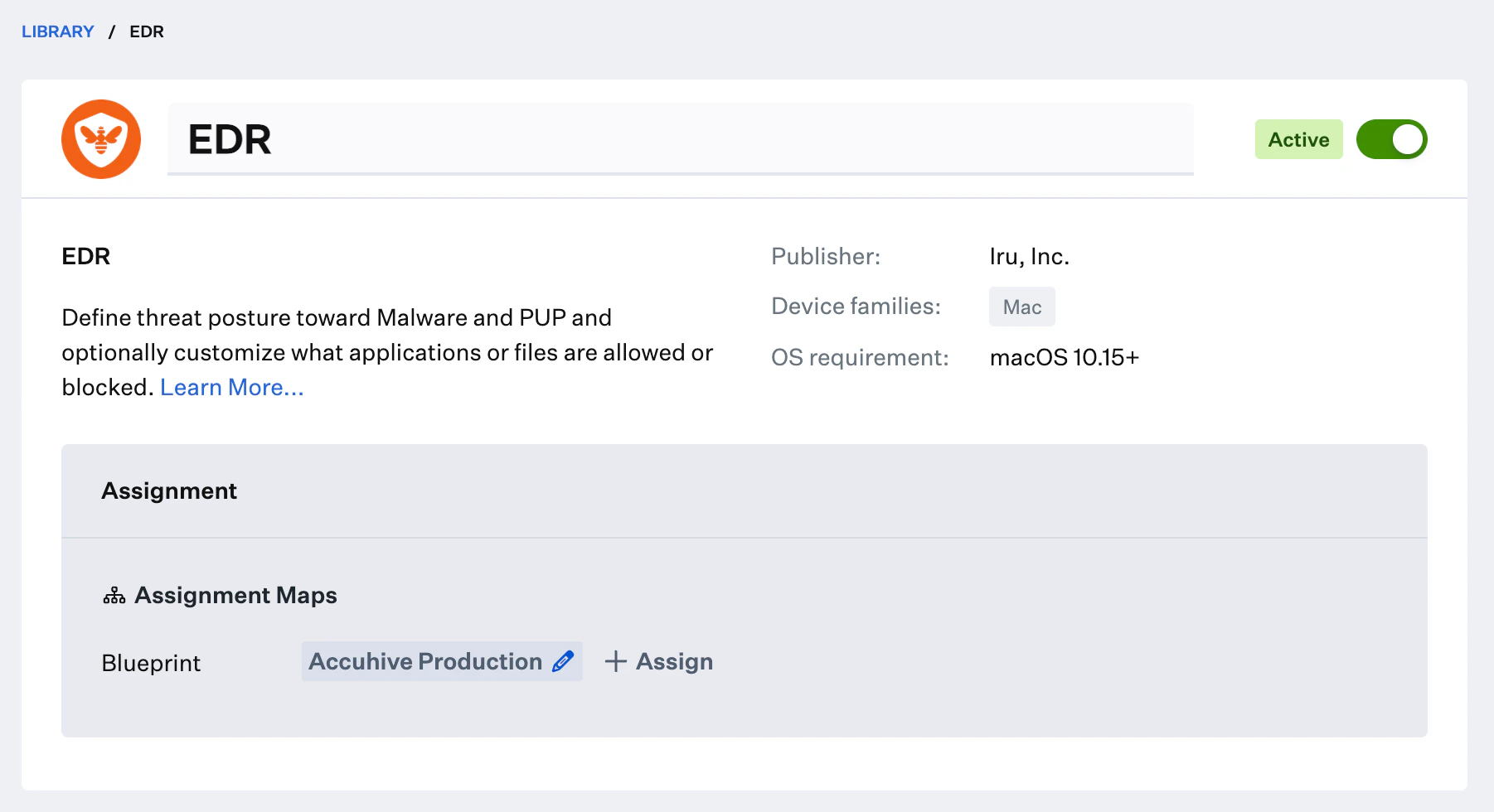
Open the Iru Endpoint Web App and navigate to your **Library**. Add a new **EDR** Library Item and give it a **Name**.
Assign the Library Item to the [Blueprints](/en/endpoint/blueprints/assignment-maps/creating-a-blueprint) containing the devices you want to protect.
 Configuration differs by platform. Select **macOS** or **Windows** below.
### Configuring File Detection Settings
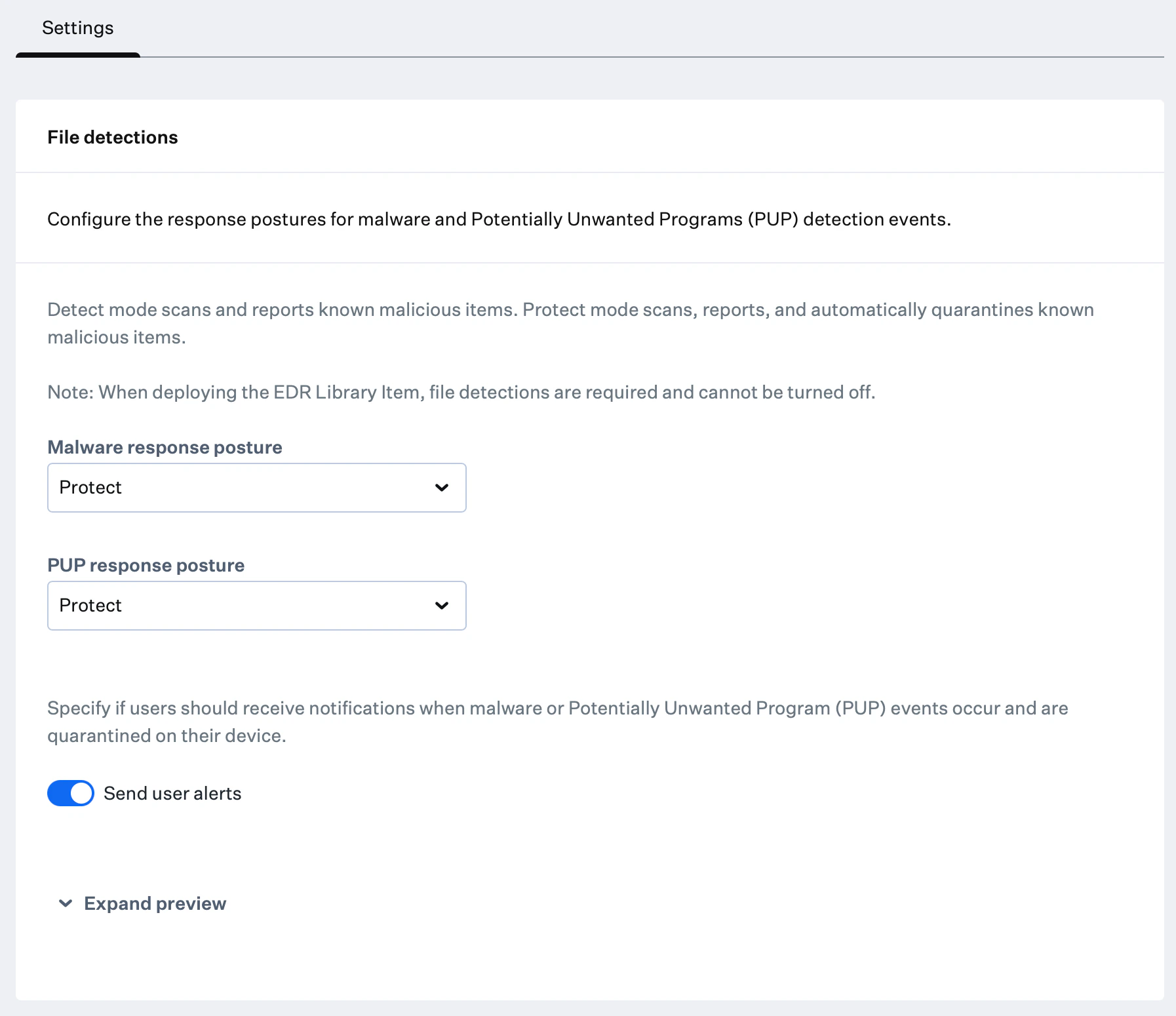
Configure individual posture mode preferences for Malware and PUPs. **Detect** mode scans and reports known malicious items. **Protect** mode scans, reports, and automatically quarantines known malicious items.
Select **Detect** or **Protect** for **Malware Posture**.
Select **Detect** or **Protect** for **PUP Posture**.
If either Malware or PUP posture is set to **Protect**, a **Send user alerts** toggle becomes available to enable or disable end-user notifications.
You can click **Expand preview** to see a sample of the user notifications.
Configuration differs by platform. Select **macOS** or **Windows** below.
### Configuring File Detection Settings
Configure individual posture mode preferences for Malware and PUPs. **Detect** mode scans and reports known malicious items. **Protect** mode scans, reports, and automatically quarantines known malicious items.
Select **Detect** or **Protect** for **Malware Posture**.
Select **Detect** or **Protect** for **PUP Posture**.
If either Malware or PUP posture is set to **Protect**, a **Send user alerts** toggle becomes available to enable or disable end-user notifications.
You can click **Expand preview** to see a sample of the user notifications.
 ### Configuring Behavioral Detections
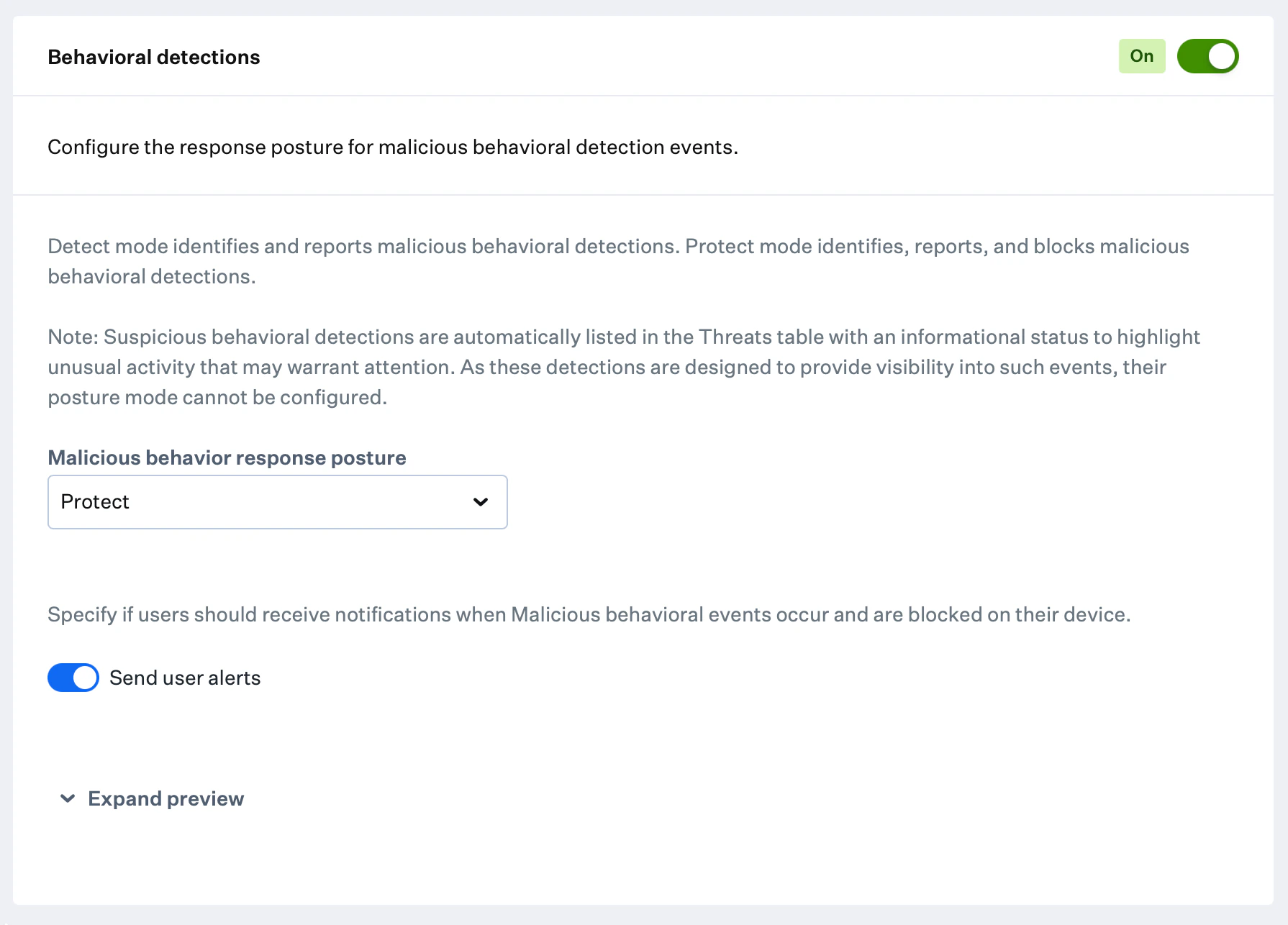
Behavioral detections are turned on by default when creating a new EDR Library Item, but can be turned off to suit certain workflows.
Suspicious behavioral detections are automatically listed in the Detections table with an informational status to highlight unusual activities that may warrant attention. These detections are designed to provide visibility and cannot have their posture mode configured.
Toggle the switch to enable Behavioral detections.
Under **Malicious behavior posture**, select either Detect or Protect.
* **Detect** mode identifies and reports malicious behavioral detections
* **Protect** mode identifies, reports, and blocks malicious behavioral detections
If Malicious behavior posture is set to Protect, a **Send user alerts** toggle becomes available to enable or disable user notifications.
You can click **Expand preview** to see a sample of the user notifications.
### Configuring Behavioral Detections
Behavioral detections are turned on by default when creating a new EDR Library Item, but can be turned off to suit certain workflows.
Suspicious behavioral detections are automatically listed in the Detections table with an informational status to highlight unusual activities that may warrant attention. These detections are designed to provide visibility and cannot have their posture mode configured.
Toggle the switch to enable Behavioral detections.
Under **Malicious behavior posture**, select either Detect or Protect.
* **Detect** mode identifies and reports malicious behavioral detections
* **Protect** mode identifies, reports, and blocks malicious behavioral detections
If Malicious behavior posture is set to Protect, a **Send user alerts** toggle becomes available to enable or disable user notifications.
You can click **Expand preview** to see a sample of the user notifications.
 ### Security Events in Self Service
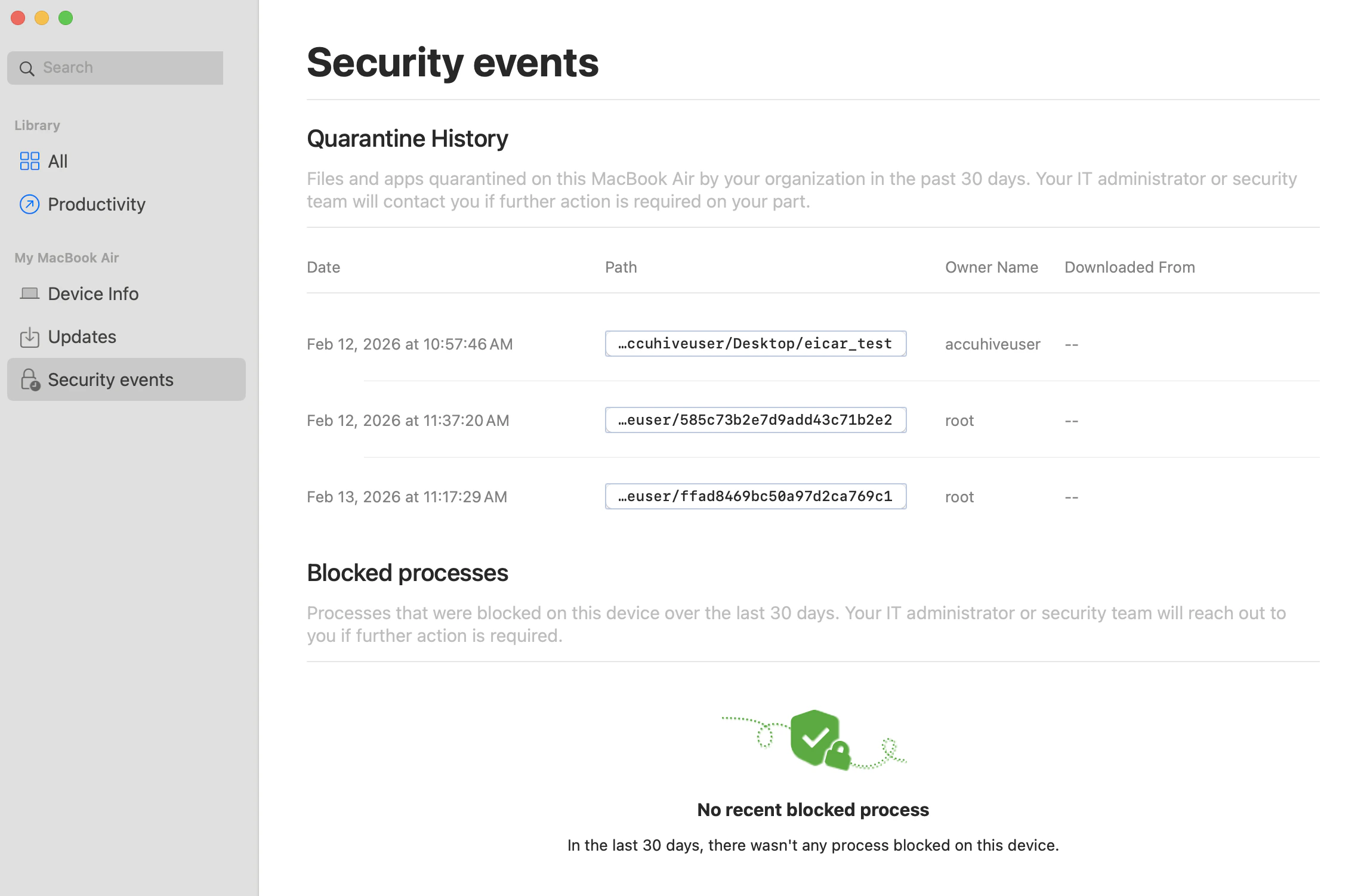
End users can view a list of quarantined files and blocked processes on their Mac computers by opening **Self Service** and clicking **Security events** from the left-hand navigation menu.
### Security Events in Self Service
End users can view a list of quarantined files and blocked processes on their Mac computers by opening **Self Service** and clicking **Security events** from the left-hand navigation menu.
 ### Configuring Allow and Block Lists
Allow and Block lists ensure that specific files or applications are always allowed or blocked in your environment, regardless of whether they appear in Iru Endpoint EDR's threat feeds.
Block items are considered Malware and require the Malware posture to be in **Protect** mode to be blocked on the device.
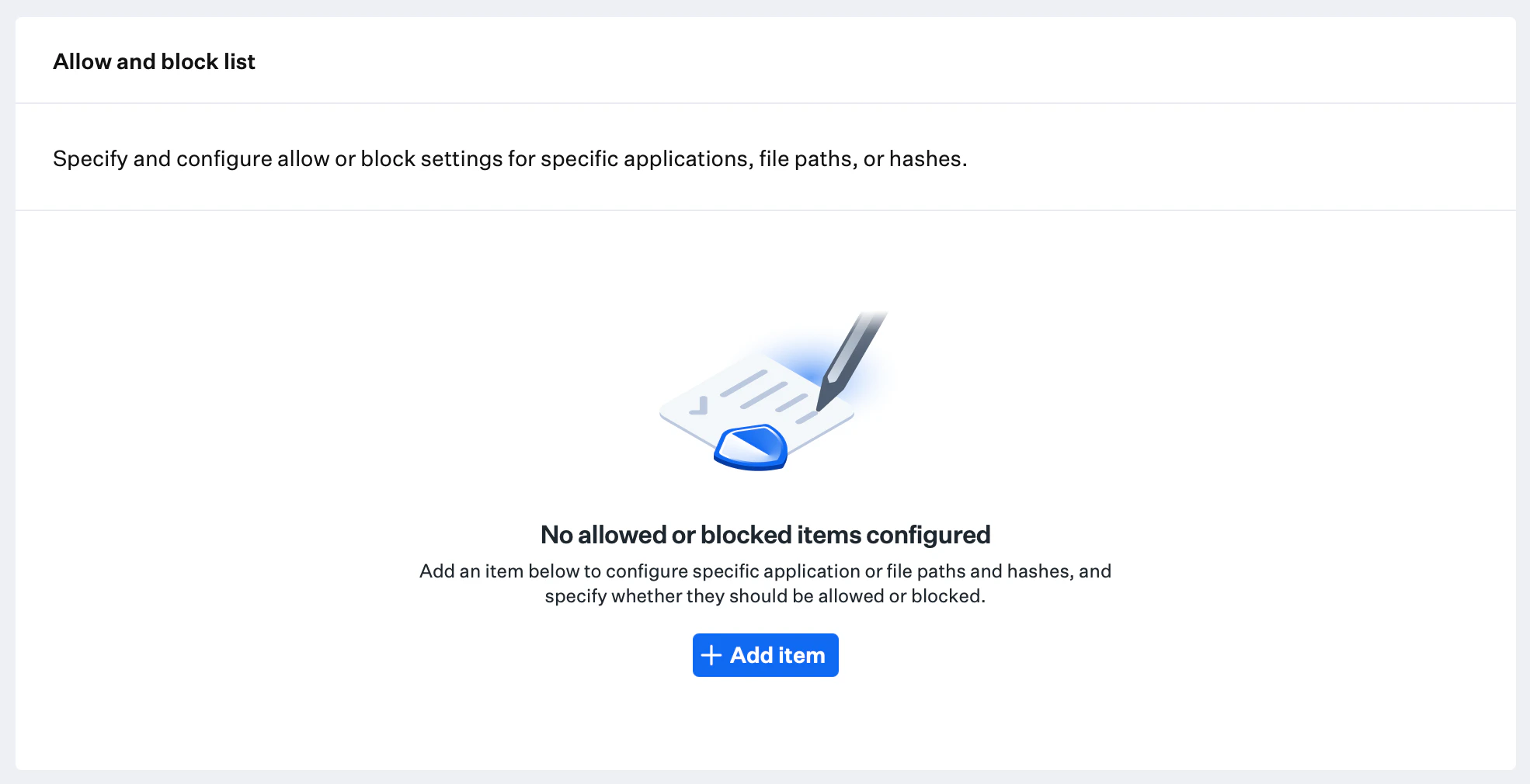
Click the **+ Add item** button.
### Configuring Allow and Block Lists
Allow and Block lists ensure that specific files or applications are always allowed or blocked in your environment, regardless of whether they appear in Iru Endpoint EDR's threat feeds.
Block items are considered Malware and require the Malware posture to be in **Protect** mode to be blocked on the device.
Click the **+ Add item** button.
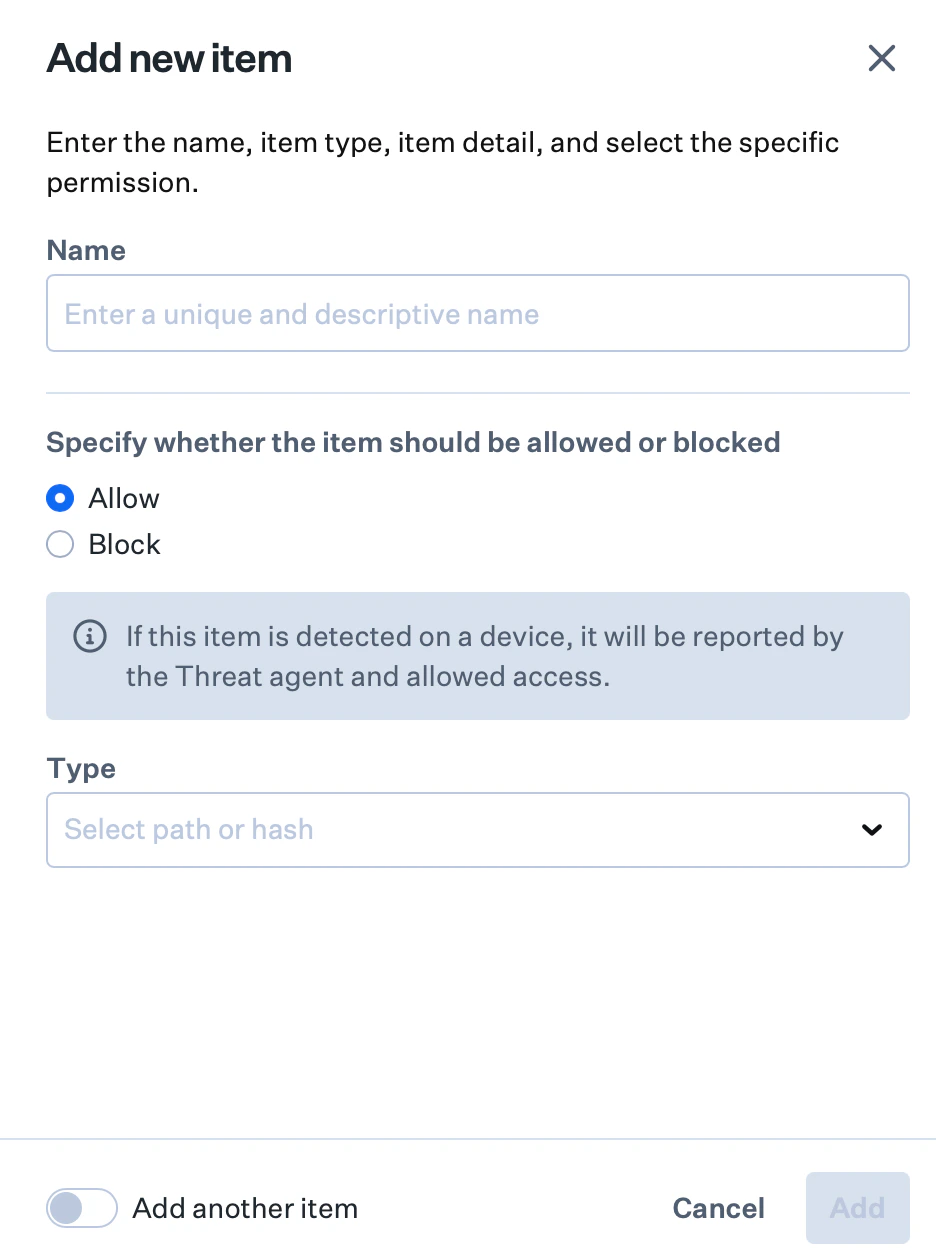
 Give the item a **Name**.
Select **Allow** to permit a file or application. Select **Block** to block it.
Specify the item type **Hash** or **Path** for the file or application.
If **Path** was selected, enter the application or file path. If **Hash** was selected, enter the file hash.
For **Path** entries, wildcard matching is supported:
* `*` matches characters within a single path segment.
* `**` matches one or more directory levels (recursive matching).
Examples: `/usr/*/file.*`, `**/file.bin`.
Click **Add** to add the item to the Allow and Block list.
Optionally, toggle **Add another item** in the lower-left corner to continue adding items.
Give the item a **Name**.
Select **Allow** to permit a file or application. Select **Block** to block it.
Specify the item type **Hash** or **Path** for the file or application.
If **Path** was selected, enter the application or file path. If **Hash** was selected, enter the file hash.
For **Path** entries, wildcard matching is supported:
* `*` matches characters within a single path segment.
* `**` matches one or more directory levels (recursive matching).
Examples: `/usr/*/file.*`, `**/file.bin`.
Click **Add** to add the item to the Allow and Block list.
Optionally, toggle **Add another item** in the lower-left corner to continue adding items.
 Click **Save** in the lower-right corner. Settings deploy and activate automatically on enrolled devices in the assigned Blueprints.
#### Determine Hash Value
The **Hash** item type is only supported for files. The **Path** item type is supported for both files and applications.
Use Terminal to determine the SHA256 hash value of a file:
```
shasum -a 256 /path/to/file
```
### Considerations
* **Posture mode selection**: Choose **Detect** for visibility without blocking, or **Protect** to actively quarantine known threats
* **Behavioral detection**: Enable behavioral detections for comprehensive threat monitoring; consider impact on performance and false positive rates
* **User alert management**: Configure user alerts to balance security awareness with user experience when files are quarantined
* **Device isolation**: EDR provides [device isolation](/en/endpoint/endpoint-detection-response-edr/device-isolation) for quarantining compromised devices from the network
* **Allow and block list management**: Maintain accurate lists to prevent legitimate applications from being blocked while ensuring malicious software is identified
* **Hash vs. path configuration**: Use hash-based entries for specific file versions and path-based entries for applications that may update frequently
* **Testing and validation**: Test configuration changes on a pilot device before broad deployment
### Next Steps
See [Testing EDR Malware Detection](/en/endpoint/endpoint-detection-response-edr/endpoint-detection-response-testing-malware-detection) to validate your deployment.
After you add the EDR Library Item and assign it to Blueprints, click **Save** to deploy it to enrolled Windows devices.
See [Endpoint Detection & Response (EDR) Overview](/en/endpoint/endpoint-detection-response-edr/endpoint-detection-and-response-edr-overview) for Windows capabilities and [Testing EDR Malware Detection](/en/endpoint/endpoint-detection-response-edr/endpoint-detection-response-testing-malware-detection) to validate your deployment.
### Viewing Edit History in the EDR Library Item
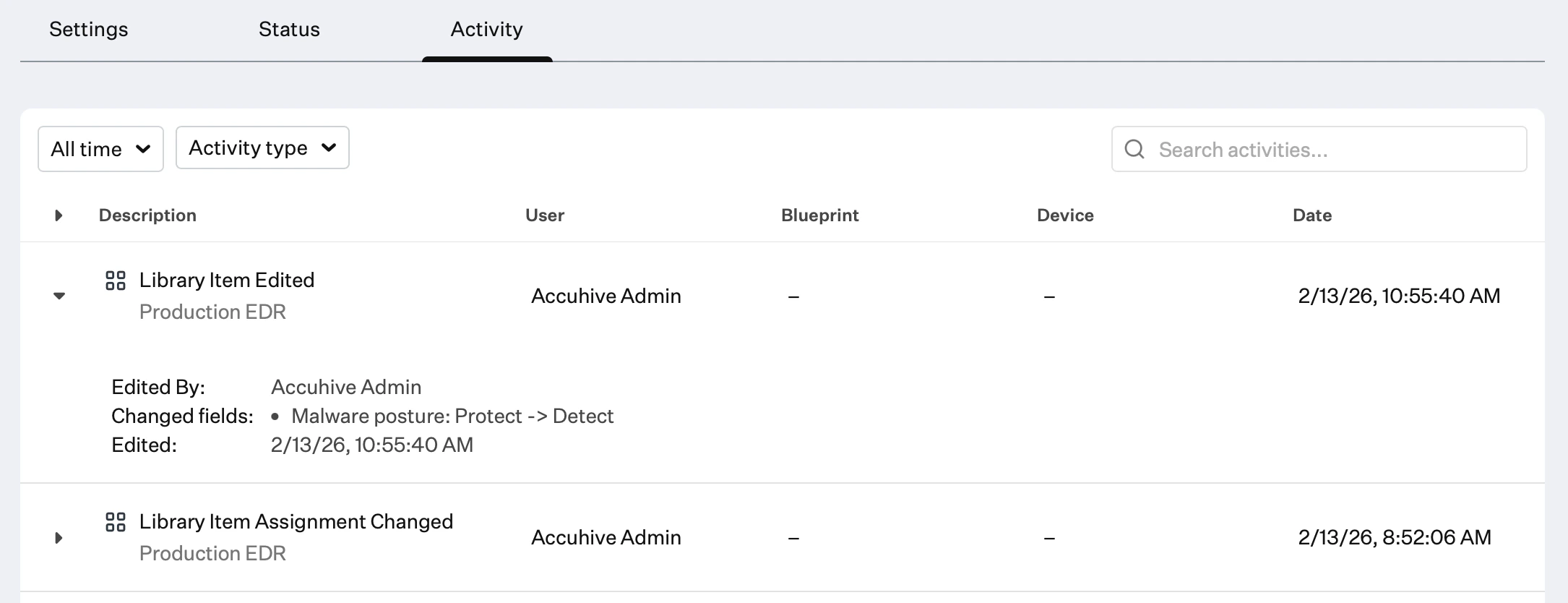
You can audit changes to the EDR Library Item in the Activity tab of the Library Item or on the [Activity Page](/en/endpoint/devices/activity-page). This shows what configurations changed, the previous state, and who made the change.
Click **Activity** in your EDR Library Item or the **Activity** icon in the top-right navigation bar to open the [Activity Page](/en/endpoint/devices/activity-page).
Select the disclosure triangle next to **Library Item Edited** for the entry you want to review.
Click **Save** in the lower-right corner. Settings deploy and activate automatically on enrolled devices in the assigned Blueprints.
#### Determine Hash Value
The **Hash** item type is only supported for files. The **Path** item type is supported for both files and applications.
Use Terminal to determine the SHA256 hash value of a file:
```
shasum -a 256 /path/to/file
```
### Considerations
* **Posture mode selection**: Choose **Detect** for visibility without blocking, or **Protect** to actively quarantine known threats
* **Behavioral detection**: Enable behavioral detections for comprehensive threat monitoring; consider impact on performance and false positive rates
* **User alert management**: Configure user alerts to balance security awareness with user experience when files are quarantined
* **Device isolation**: EDR provides [device isolation](/en/endpoint/endpoint-detection-response-edr/device-isolation) for quarantining compromised devices from the network
* **Allow and block list management**: Maintain accurate lists to prevent legitimate applications from being blocked while ensuring malicious software is identified
* **Hash vs. path configuration**: Use hash-based entries for specific file versions and path-based entries for applications that may update frequently
* **Testing and validation**: Test configuration changes on a pilot device before broad deployment
### Next Steps
See [Testing EDR Malware Detection](/en/endpoint/endpoint-detection-response-edr/endpoint-detection-response-testing-malware-detection) to validate your deployment.
After you add the EDR Library Item and assign it to Blueprints, click **Save** to deploy it to enrolled Windows devices.
See [Endpoint Detection & Response (EDR) Overview](/en/endpoint/endpoint-detection-response-edr/endpoint-detection-and-response-edr-overview) for Windows capabilities and [Testing EDR Malware Detection](/en/endpoint/endpoint-detection-response-edr/endpoint-detection-response-testing-malware-detection) to validate your deployment.
### Viewing Edit History in the EDR Library Item
You can audit changes to the EDR Library Item in the Activity tab of the Library Item or on the [Activity Page](/en/endpoint/devices/activity-page). This shows what configurations changed, the previous state, and who made the change.
Click **Activity** in your EDR Library Item or the **Activity** icon in the top-right navigation bar to open the [Activity Page](/en/endpoint/devices/activity-page).
Select the disclosure triangle next to **Library Item Edited** for the entry you want to review.