> ## Documentation Index
> Fetch the complete documentation index at: https://docs.iru.com/llms.txt
> Use this file to discover all available pages before exploring further.
# How to Generate a Sysdiagnose in macOS
> Generate a sysdiagnose report on Mac computers for Apple Support troubleshooting. Collect system logs, crash reports, and diagnostic data from macOS.
This guide applies to Mac computers
### About Sysdiagnose
A sysdiagnose in macOS is a powerful tool designed to help troubleshoot and debug complex system issues. It collects a wide range of diagnostic data from your Mac, making it invaluable for identifying performance problems, crashes, and other system anomalies. Sysdiagnoses can be generated using a few different methods, each of which may apply for different levels of user access.
### How It Works
Sysdiagnose collects comprehensive system information to help diagnose issues. The tool gathers performance data, logs, hardware information, and system state details that can be analyzed to identify problems or performance bottlenecks.
* [Generating a Sysdiagnose Using a Keyboard Shortcut](#generating-a-sysdiagnose-using-a-keyboard-shortcut)
* [Generating a Sysdiagnose Using the Command Line](#generating-a-sysdiagnose-using-the-command-line)
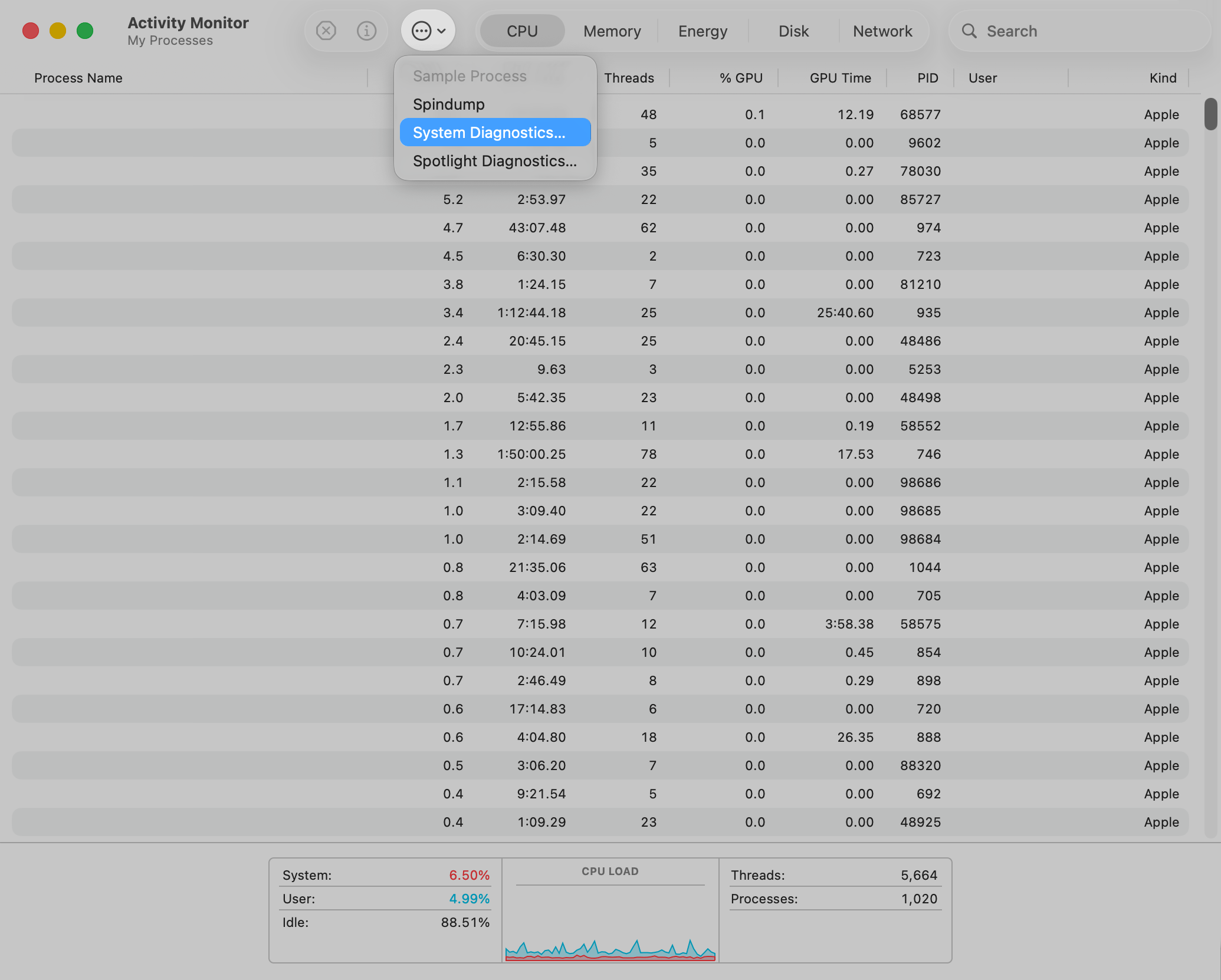
* [Generating a Sysdiagnose Using Activity Monitor](#generating-a-sysdiagnose-using-activity-monitor)
### What Sysdiagnose Collects
When you run sysdiagnose, it gathers an extensive array of information, including:
* **System-wide performance profiles** - Captures the state of running processes
* **Filesystem activity logs** - Reports on system calls and page faults related to filesystem usage
* **Process information** - Provides detailed data on running processes and memory usage
* **Kernel memory usage** - Includes data on kernel zones and loaded kernel extensions
* **System and crash logs** - Collects all relevant logs to help diagnose issues
* **Hardware and software configuration** - Similar to the System Information app, but more detailed
* **Network and power management data** - Details on current network status and power settings
### Generating a Sysdiagnose Using a Keyboard Shortcut
Click the **Finder icon** in the Dock to ensure that Finder is in the foreground.
All at once, press **Command + Option + Shift + Control + Period (.)** on the keyboard.
After a few moments, a Finder window should appear with a tar.gz file shown.
If the sysdiagnose was requested by Iru Endpoint Support, please zip it and provide the entire bundle.
### Generating a Sysdiagnose Using the Command Line
This method requires administrator privileges.
Launch Terminal.app and enter the following command:
```
sudo sysdiagnose -f ~/Desktop/
```
Wait a few moments for a file ending in .tar.gz to appear on the logged-in user's Desktop. If you logged into Terminal with a different user than is logged into the Mac, the file will be on the Terminal user's Desktop.
If the sysdiagnose was requested by Iru Endpoint Support, please zip it and provide the entire bundle.
### Generating a Sysdiagnose Using Activity Monitor
This method requires administrator privileges.
Open the Activity Monitor app on your Mac.
Click the **ellipsis** at the top of the Activity Monitor window.
Select **System Diagnostics...**
 Read through and accept the privacy agreement.
Wait for the progress bar to complete. Once done, a Finder window should appear with a tar.gz file shown.
If the sysdiagnose was requested by Iru Endpoint Support, please zip it and provide the entire bundle.
Read through and accept the privacy agreement.
Wait for the progress bar to complete. Once done, a Finder window should appear with a tar.gz file shown.
If the sysdiagnose was requested by Iru Endpoint Support, please zip it and provide the entire bundle.