> ## Documentation Index
> Fetch the complete documentation index at: https://docs.iru.com/llms.txt
> Use this file to discover all available pages before exploring further.
# Reset Android Work Profile Passcode
> Reset or set a new work profile passcode on managed Android devices from Iru Endpoint. Clear forgotten passcodes and restore access to work apps.
This guide applies to Android devices
### About Reset Android Work Profile Passcode
The **Reset work profile passcode** command resets the work profile passcode on an Android device and optionally lets you set a new one. Run it from a device record in the Iru web app or via the Iru enterprise API.
### Requirements
* Enrolled Android device with a work profile
### How It Works
Iru Endpoint sends the command to the device through the Android Management API. When the device receives it, the existing work profile passcode is reset. If you set a new passcode, it is validated against any assigned *Android Work Profile Passcode* Library Item and must meet Android’s minimum length (4 characters, or 6 on Android 14).
#### When No Work Profile Passcode Policy Is Assigned
When no *Android Work Profile Passcode* Library Item is assigned to the device, you can reset the passcode and optionally set a new one. To enforce stricter requirements, assign the [Android Work Profile Passcode](/en/endpoint/library/library-items-profiles/configure-the-passcode-library-item#creating-android-work-profile-passcode-policies) Library Item.
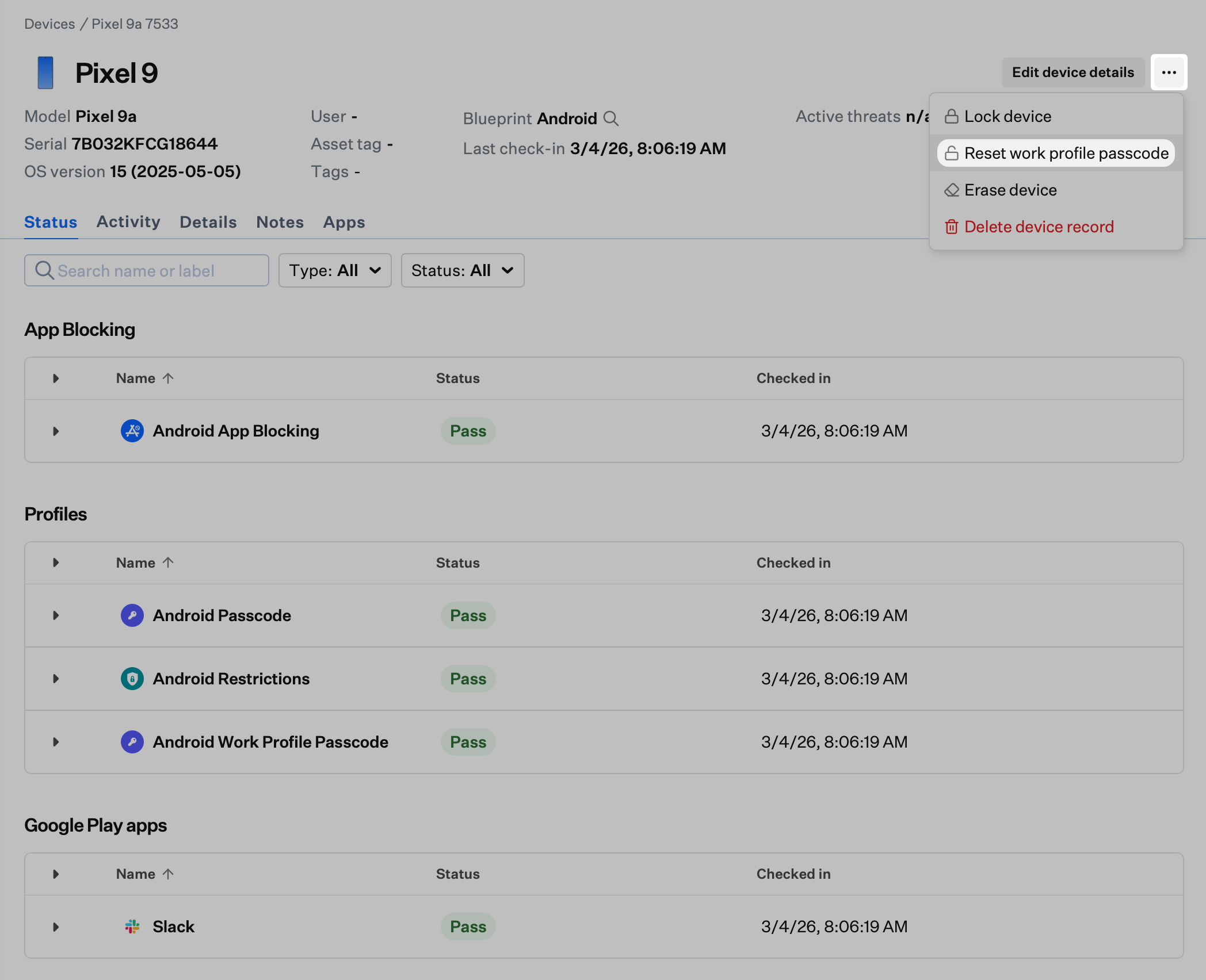
Go to the **Devices** page and select an Android device.
Open the **Device Action Menu** (ellipsis) in the upper right corner and select **Reset work profile passcode**.
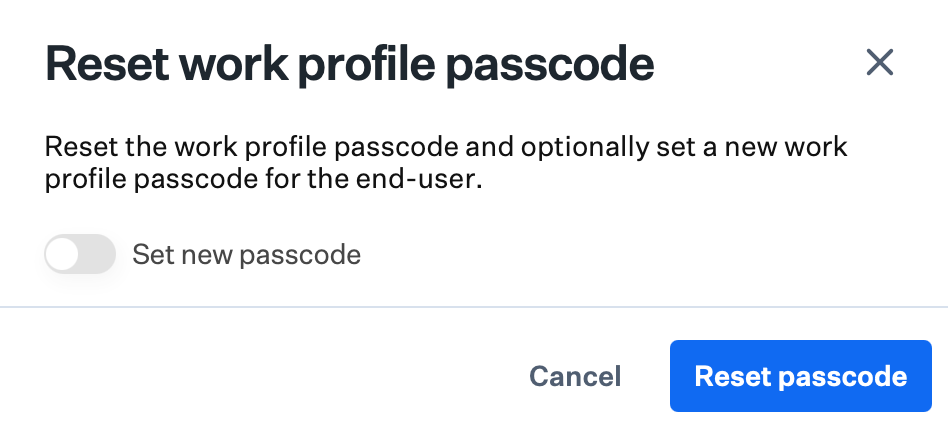
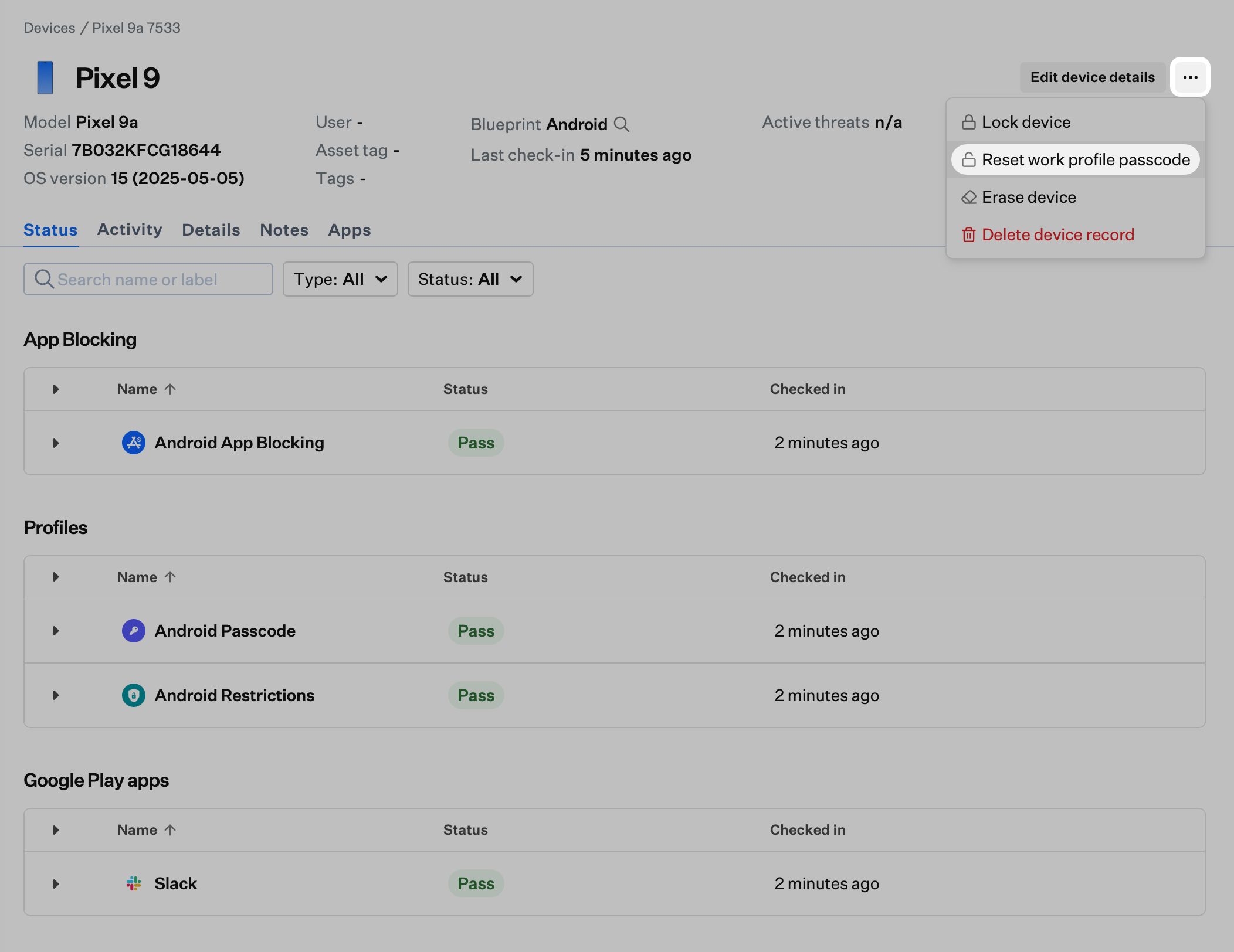 To reset the work profile passcode only, leave **Set new passcode** off and click **Reset passcode** to send the command.
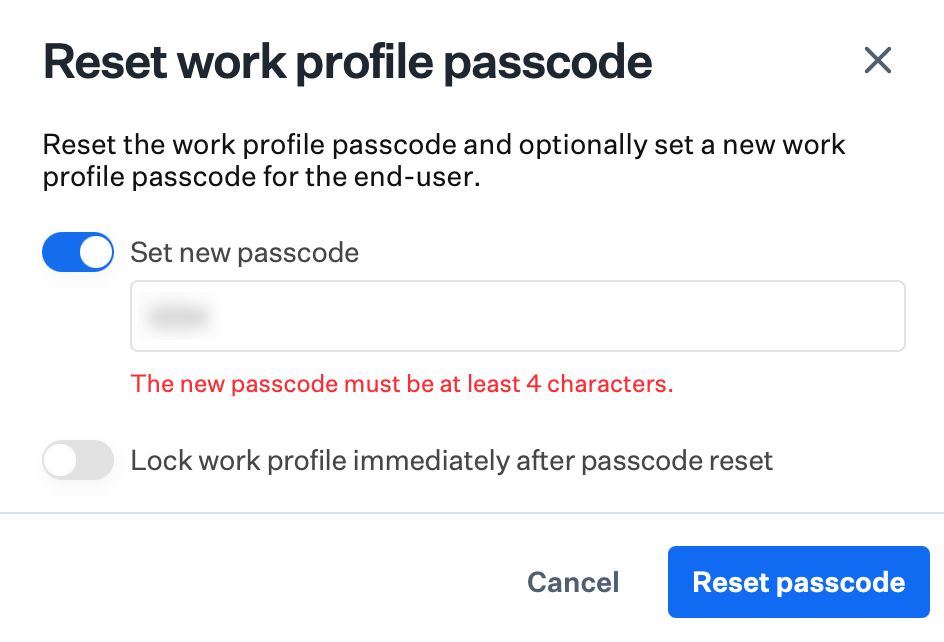
 To set a new passcode, turn on **Set new passcode**, enter a passcode that meets the minimum length, then click **Reset passcode**.
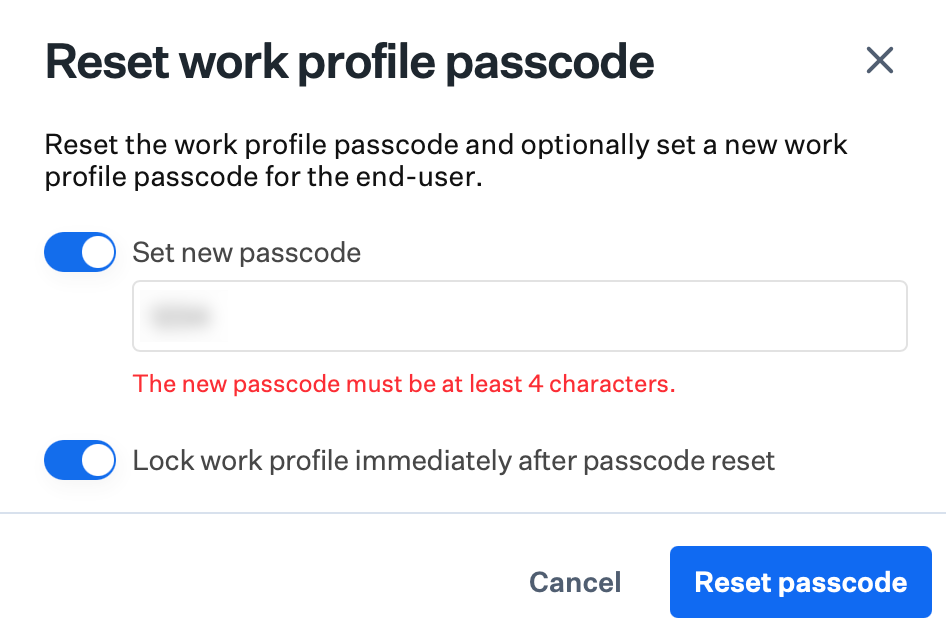
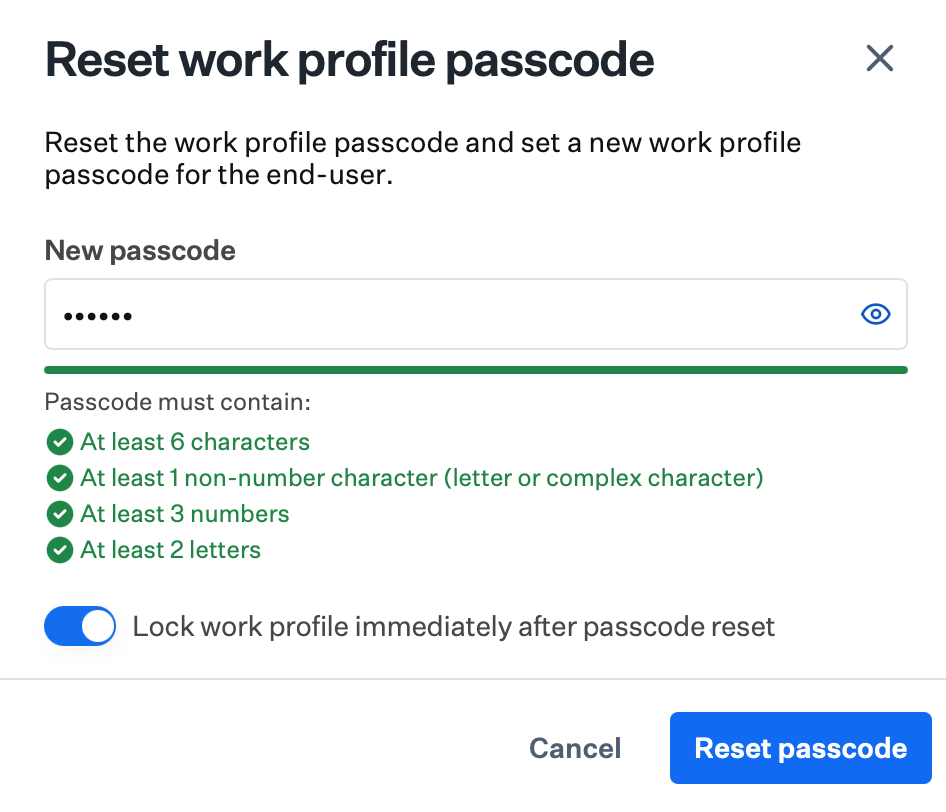
 Optionally turn on **Lock work profile immediately after passcode reset** before clicking **Reset passcode**. With this option, the new passcode is required immediately to access any work profile content. Without it, the new passcode is only required the next time the user would normally enter their PIN.
 #### When a Work Profile Passcode Policy Is Assigned
When the device has the *Android Work Profile Passcode* Library Item assigned, a new passcode is required and the policy requirements are enforced. For details on configuring the Library Item, see [Android Work Profile Passcode](/en/endpoint/library/library-items-profiles/configure-the-passcode-library-item#creating-android-work-profile-passcode-policies).
Go to the **Devices** page and select an Android device.
Open the **Device Action Menu** (ellipsis) in the upper right corner and select **Reset work profile passcode**.
#### When a Work Profile Passcode Policy Is Assigned
When the device has the *Android Work Profile Passcode* Library Item assigned, a new passcode is required and the policy requirements are enforced. For details on configuring the Library Item, see [Android Work Profile Passcode](/en/endpoint/library/library-items-profiles/configure-the-passcode-library-item#creating-android-work-profile-passcode-policies).
Go to the **Devices** page and select an Android device.
Open the **Device Action Menu** (ellipsis) in the upper right corner and select **Reset work profile passcode**.
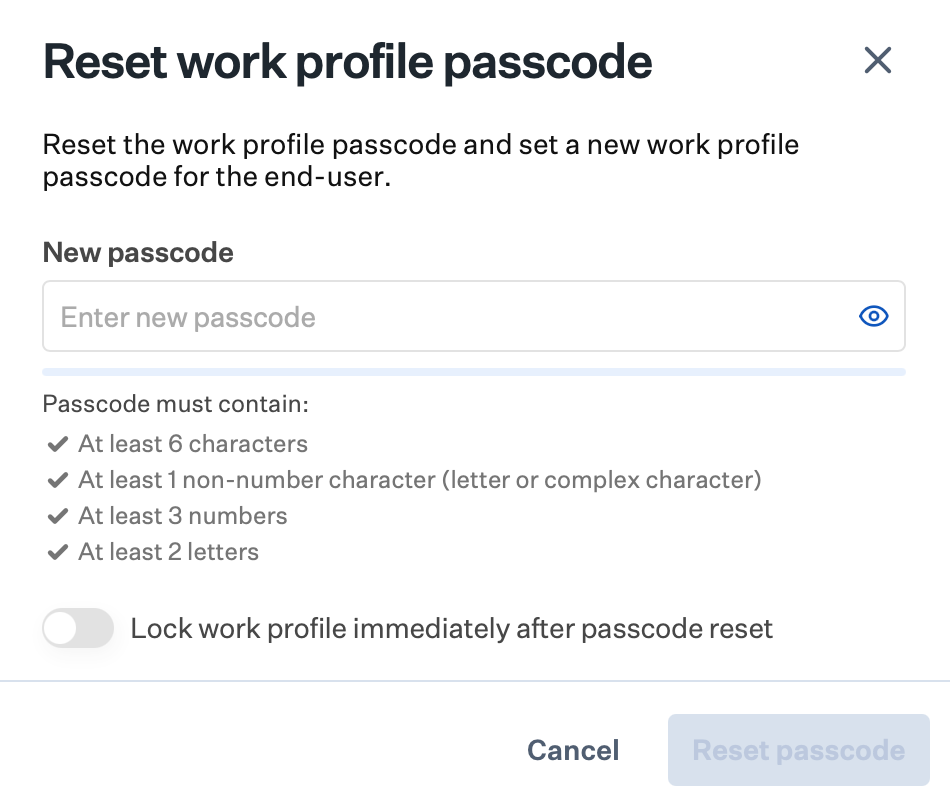
 The modal displays the requirements from the assigned Library Item (for example, minimum length, numbers, letters). Each requirement appears in the list until it is met.
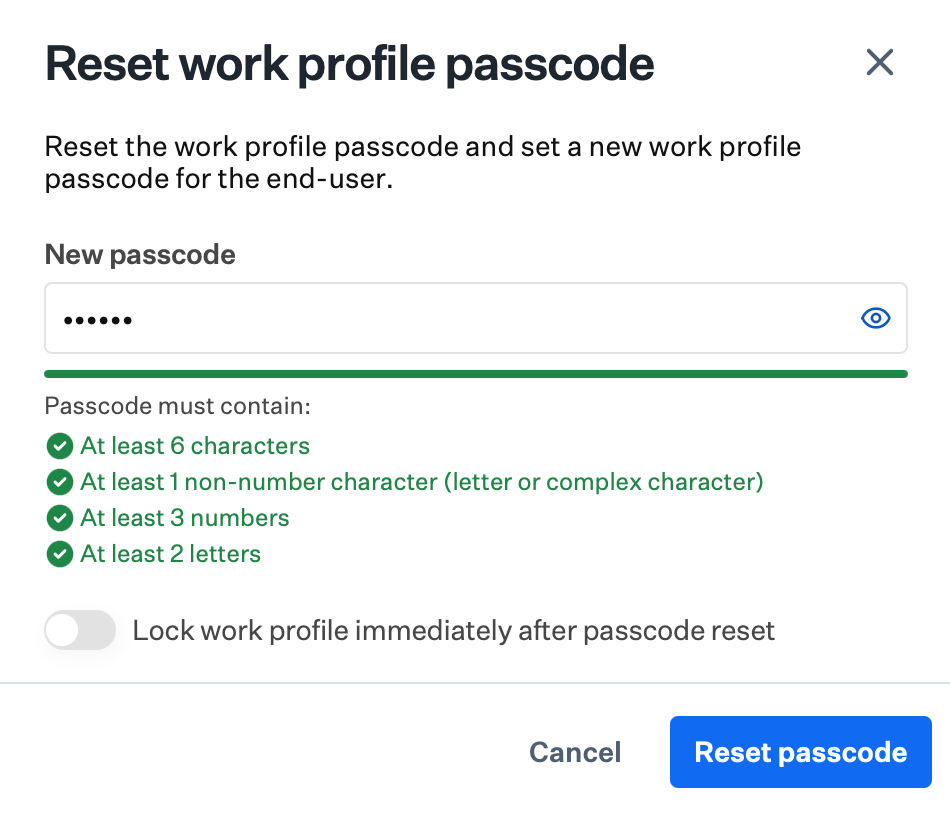
 As you enter a passcode, validation runs and each requirement shows a green checkmark when met. When all requirements are met, **Reset passcode** is enabled.
 Optionally turn on **Lock work profile immediately after passcode reset**. With this option, the new passcode is required immediately to access any work profile content. Without it, the new passcode is only required the next time the user would normally enter their PIN.
 Click **Reset passcode** to send the command.
### When to Use This Command
The **Reset work profile passcode** command gives admins a way to restore access to work apps when an end user forgets their passcode, so users can avoid unenrolling and re-enrolling the Android device.
To learn more about the underlying command and behavior, see the [Android Management API](https://developers.google.com/android/management/reference/rest/v1/enterprises.devices/issueCommand#resetpasswordflag) in Google's documentation.
### Related Articles
Remotely lock devices across all platforms
Remotely erase a device
View and manage the application list on devices
Click **Reset passcode** to send the command.
### When to Use This Command
The **Reset work profile passcode** command gives admins a way to restore access to work apps when an end user forgets their passcode, so users can avoid unenrolling and re-enrolling the Android device.
To learn more about the underlying command and behavior, see the [Android Management API](https://developers.google.com/android/management/reference/rest/v1/enterprises.devices/issueCommand#resetpasswordflag) in Google's documentation.
### Related Articles
Remotely lock devices across all platforms
Remotely erase a device
View and manage the application list on devices