> ## Documentation Index
> Fetch the complete documentation index at: https://docs.iru.com/llms.txt
> Use this file to discover all available pages before exploring further.
# Modifying a Blueprint
> Edit Blueprint settings and Assignment Maps in Iru Endpoint. Update Library Item assignments, change parameters, and adjust device configurations.
This guide applies to all device platforms
### About modifying a Blueprint
Modifying a Blueprint lets you update Blueprint details (name, description, and appearance), adjust Assignment Map logic, and manage Parameters for Mac devices.
As of April 1, 2026, all legacy Classic Blueprints were automatically converted to Assignment Maps, which are the default, improved version of Blueprints.
### How It Works
Blueprint changes apply to devices based on check-in behavior and the specific items assigned in the Assignment Map. Changing metadata (name, description, icon) affects organization only; changing assignments or rules affects what devices receive. Blueprint updates are recorded on the [Activity Page](/en/endpoint/devices/activity-page).
### Modify Blueprint details
**Edit Blueprint** is where you change how the Blueprint is labeled in the product: its **name**, optional **description**, and the **icon** and **color** shown on the Blueprint tile and elsewhere. Those updates are organizational only; they do not change Assignment Map content, Library Item assignments, or what devices receive.
#### From a Blueprint tile on the Blueprints page
Open **Blueprints** in the left navigation.
On the **tile** for the Blueprint you want to edit, click the **ellipsis** (**…**).
Click **Edit Blueprint**.
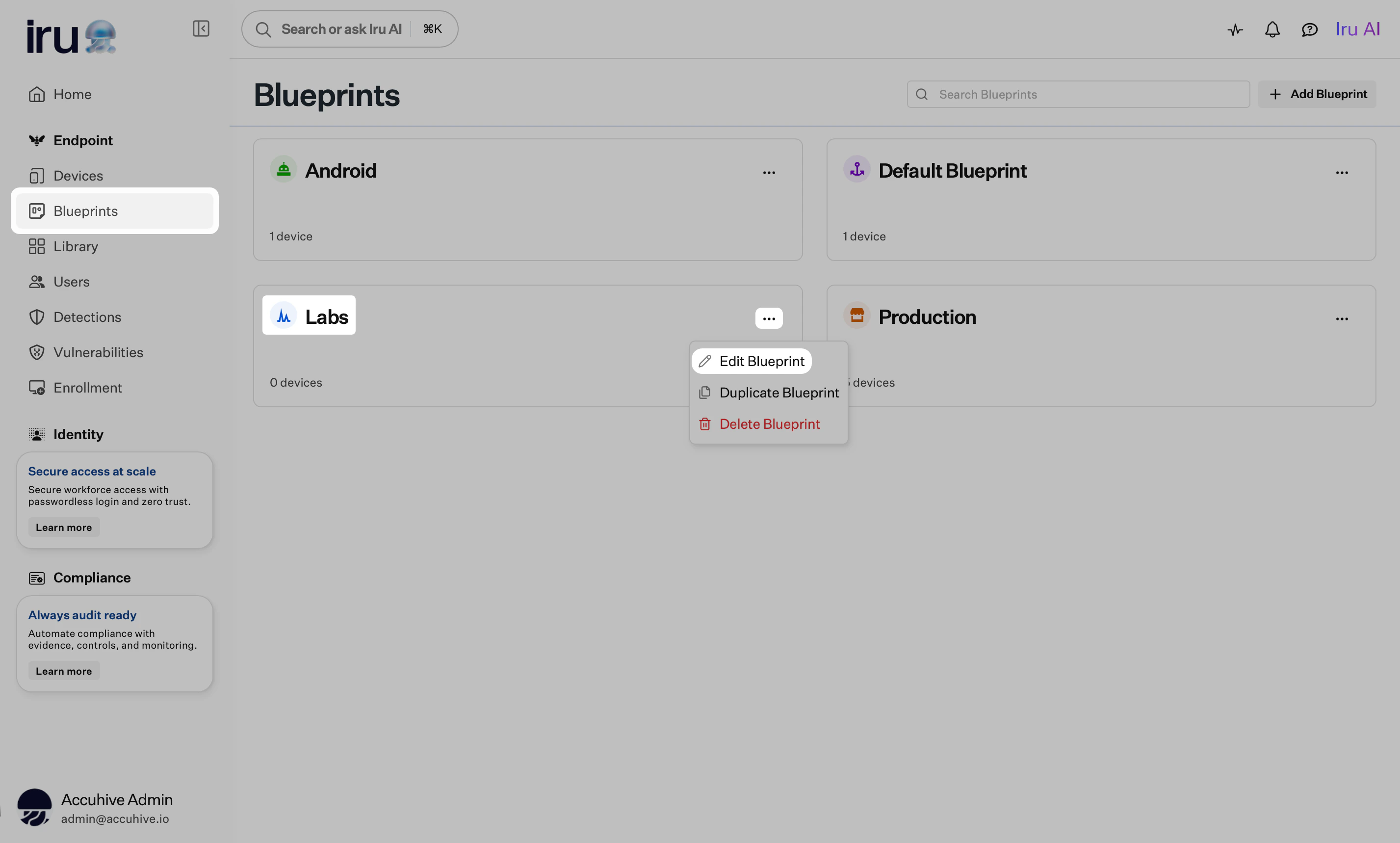 Update the Blueprint **name**, optional **description**, and icon/color as needed.
Click **Confirm**.
#### From the Blueprint page
Open **Blueprints** in the left navigation.
On the Blueprints page, click the **tile** for the Blueprint you want to edit.
Click the **ellipsis** (**…**) in the Blueprint header.
Click **Edit Blueprint**.
Update the Blueprint **name**, optional **description**, and icon/color as needed.
Click **Confirm**.
#### From the Blueprint page
Open **Blueprints** in the left navigation.
On the Blueprints page, click the **tile** for the Blueprint you want to edit.
Click the **ellipsis** (**…**) in the Blueprint header.
Click **Edit Blueprint**.
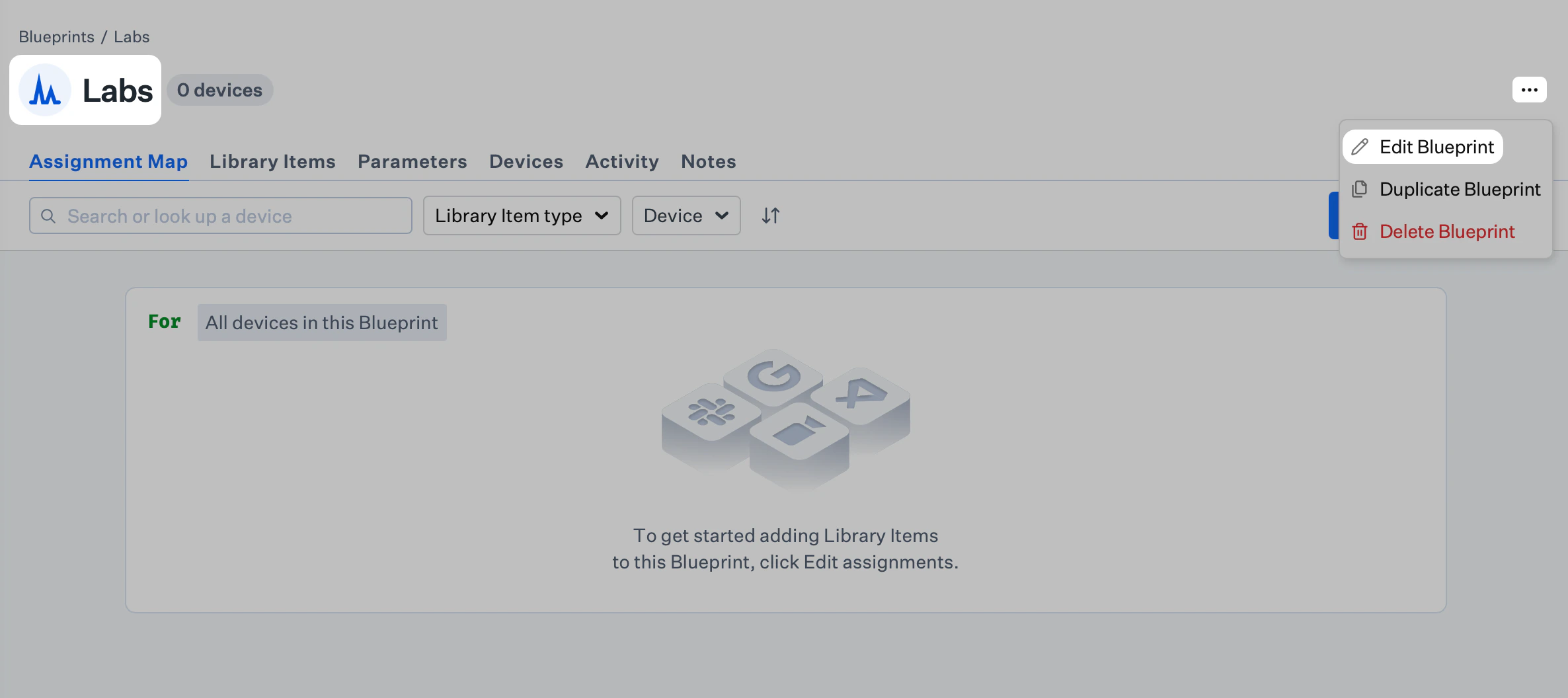 Update the Blueprint **name**, optional **description**, and icon/color as needed.
Click **Confirm**.
### Modify Assignment Map content
From the Assignment Map view, click **Edit assignments**.
Add or remove Library Items, adjust Assignment Nodes, and edit conditional blocks.
Click **Save** when finished.
### Modify Parameters (Mac only)
In the Blueprint, open the **Parameters** tab.
Click **Edit Parameters**, then enable, disable, or adjust needed Parameters.
Click **Save**.
### Related Articles
Create and manage Assignment Maps, Library Items, and Parameters
Copy an existing Blueprint and Assignment Map
Remove an unused Blueprint safely
Use conditional logic to scope assignments
Update the Blueprint **name**, optional **description**, and icon/color as needed.
Click **Confirm**.
### Modify Assignment Map content
From the Assignment Map view, click **Edit assignments**.
Add or remove Library Items, adjust Assignment Nodes, and edit conditional blocks.
Click **Save** when finished.
### Modify Parameters (Mac only)
In the Blueprint, open the **Parameters** tab.
Click **Edit Parameters**, then enable, disable, or adjust needed Parameters.
Click **Save**.
### Related Articles
Create and manage Assignment Maps, Library Items, and Parameters
Copy an existing Blueprint and Assignment Map
Remove an unused Blueprint safely
Use conditional logic to scope assignments