> ## Documentation Index
> Fetch the complete documentation index at: https://docs.iru.com/llms.txt
> Use this file to discover all available pages before exploring further.
# How to Submit Iru Agent Diagnostics
> Submit Iru Agent diagnostic data for troubleshooting macOS and Windows issues. Collect logs, generate reports, and share them with support.
This guide applies to Mac computers
### About Iru Agent Diagnostics
The Iru Agent has a built-in tool for gathering and submitting detailed diagnostic data from your Mac to Iru Endpoint for troubleshooting. This data includes logs, operating system information, and other relevant details about your device, which helps the Iru Endpoint support team investigate behaviors and provide guidance to troubleshoot issues. For information on submitting macOS-specific diagnostics, please see our [How to Generate a Sysdiagnose in macOS](/en/endpoint/devices/device-configurations/apple/how-to-generate-a-sysdiagnose-in-macos) support article.
As of **April 8, 2026**, apps were updated from **Kandji** 
 to **Iru**
  branding. Submit Diagnostics has been updated to Iru branding. Please update **scripts, automations, and utilities** that still reference the old app names.
### How to Submit Iru Agent Diagnostics
There are three ways to submit diagnostics from an Iru Endpoint-enrolled Mac: using the Iru menu bar, using Self Service, or using the command-line interface (CLI).
#### Submitting Diagnostics using the Iru menu bar
If the Iru menu bar icon is hidden, it can be revealed again from the Iru Self Service application.
Select the **Iru jellyfish** from the menu bar.
Click the settings **gear**.
branding. Submit Diagnostics has been updated to Iru branding. Please update **scripts, automations, and utilities** that still reference the old app names.
### How to Submit Iru Agent Diagnostics
There are three ways to submit diagnostics from an Iru Endpoint-enrolled Mac: using the Iru menu bar, using Self Service, or using the command-line interface (CLI).
#### Submitting Diagnostics using the Iru menu bar
If the Iru menu bar icon is hidden, it can be revealed again from the Iru Self Service application.
Select the **Iru jellyfish** from the menu bar.
Click the settings **gear**.
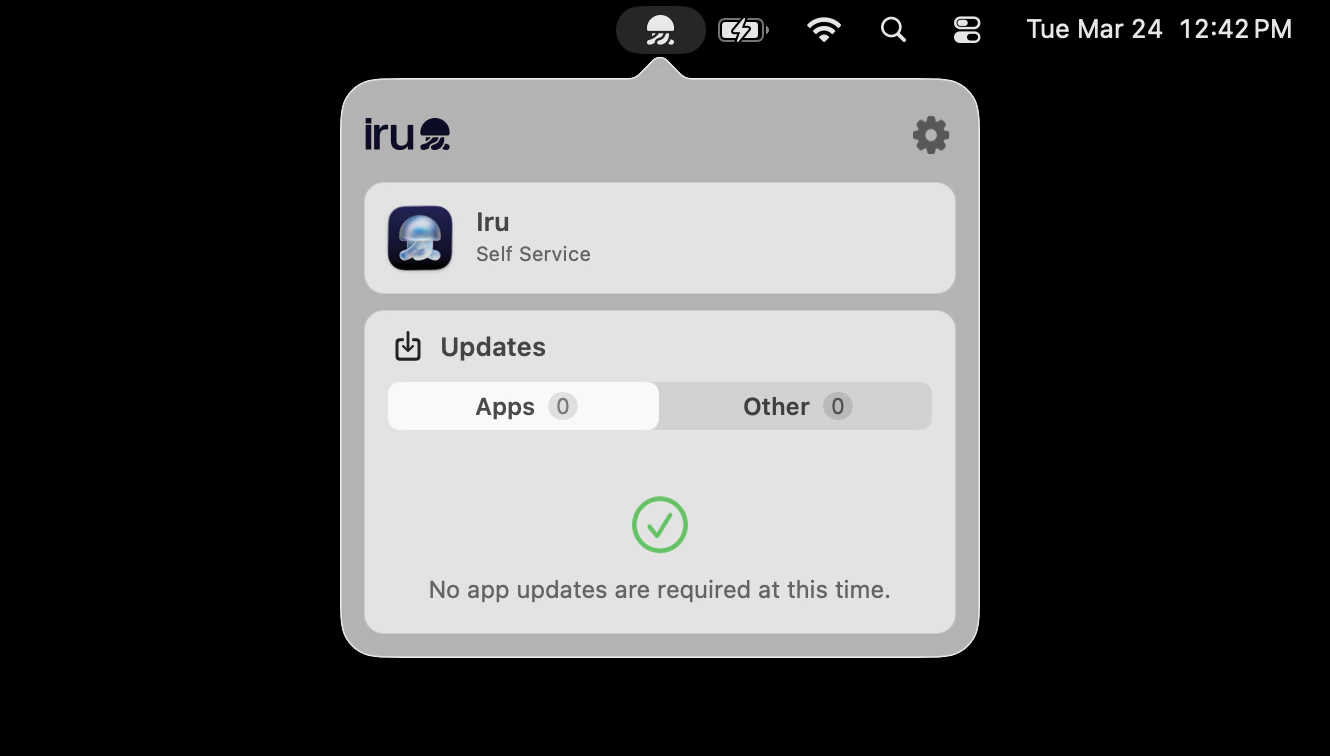 Choose **Submit Diagnostics...** from the dropdown menu.
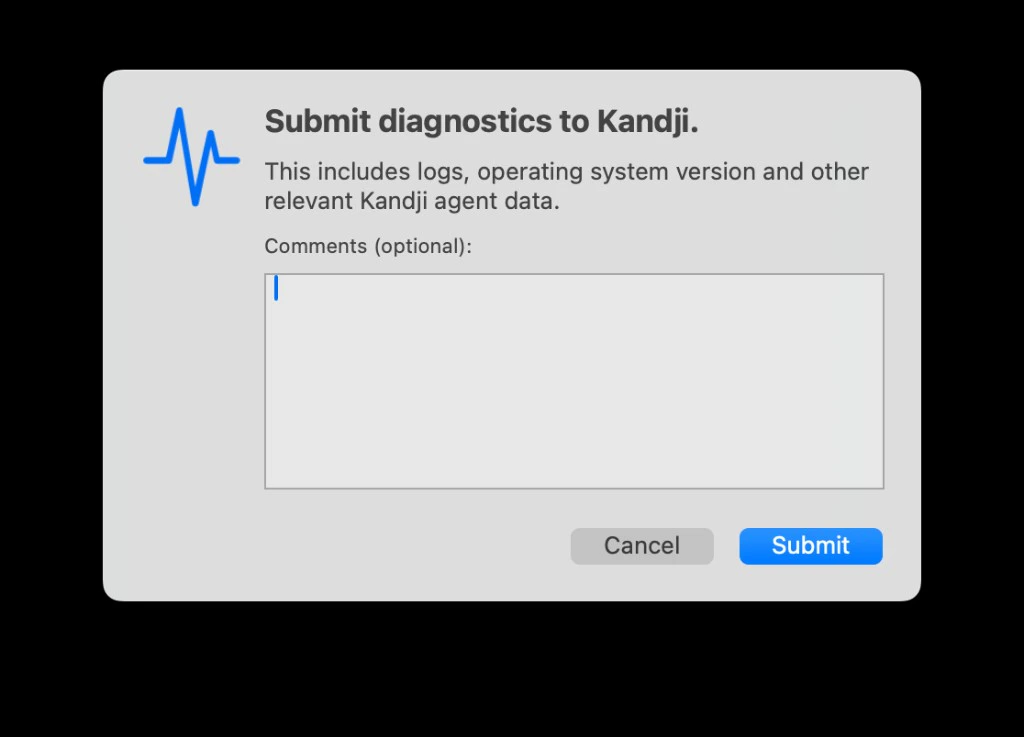
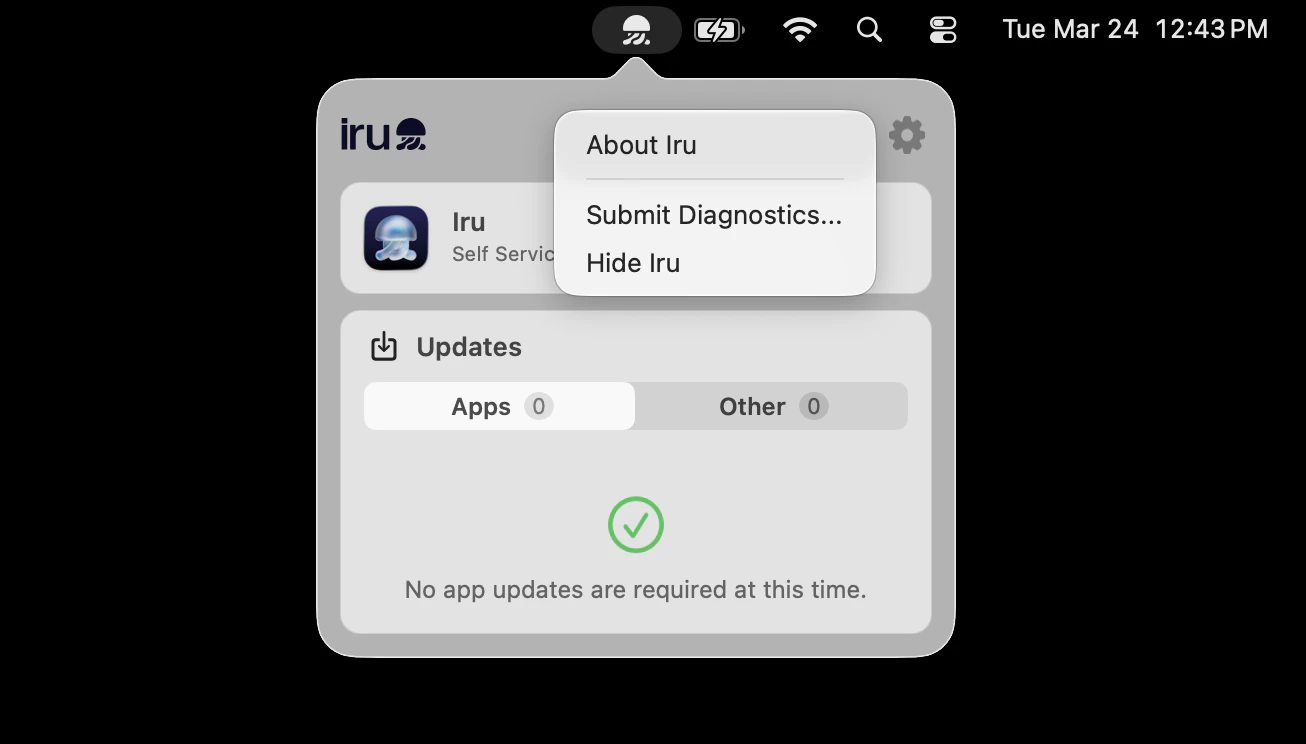 Optionally, add comments describing the issue you're experiencing.
Click **Submit**.
Optionally, add comments describing the issue you're experiencing.
Click **Submit**.
 #### Submitting Diagnostics using Iru Self Service
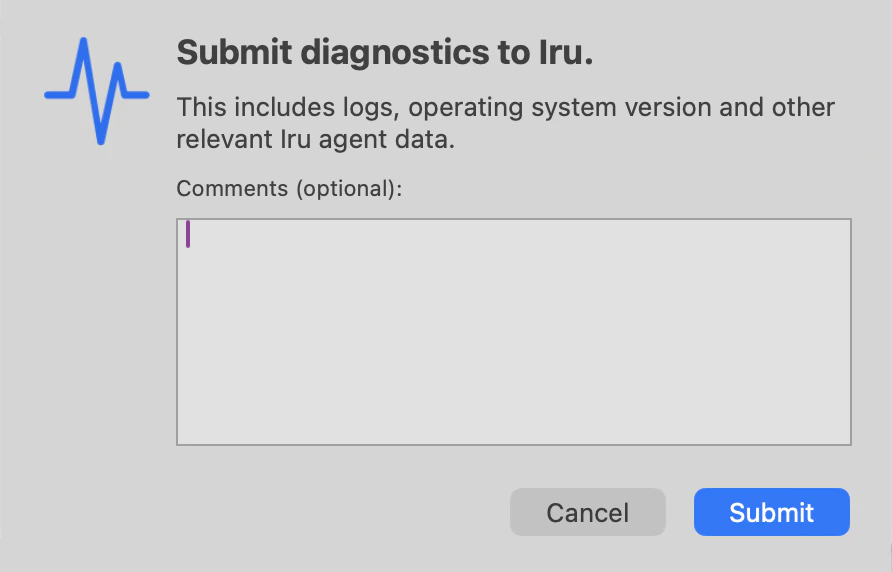
Open the **Self Service** app.
Click **Device Info**.
Click the **ellipsis** next to Sync.
Select **Submit Diagnostics**.
#### Submitting Diagnostics using Iru Self Service
Open the **Self Service** app.
Click **Device Info**.
Click the **ellipsis** next to Sync.
Select **Submit Diagnostics**.
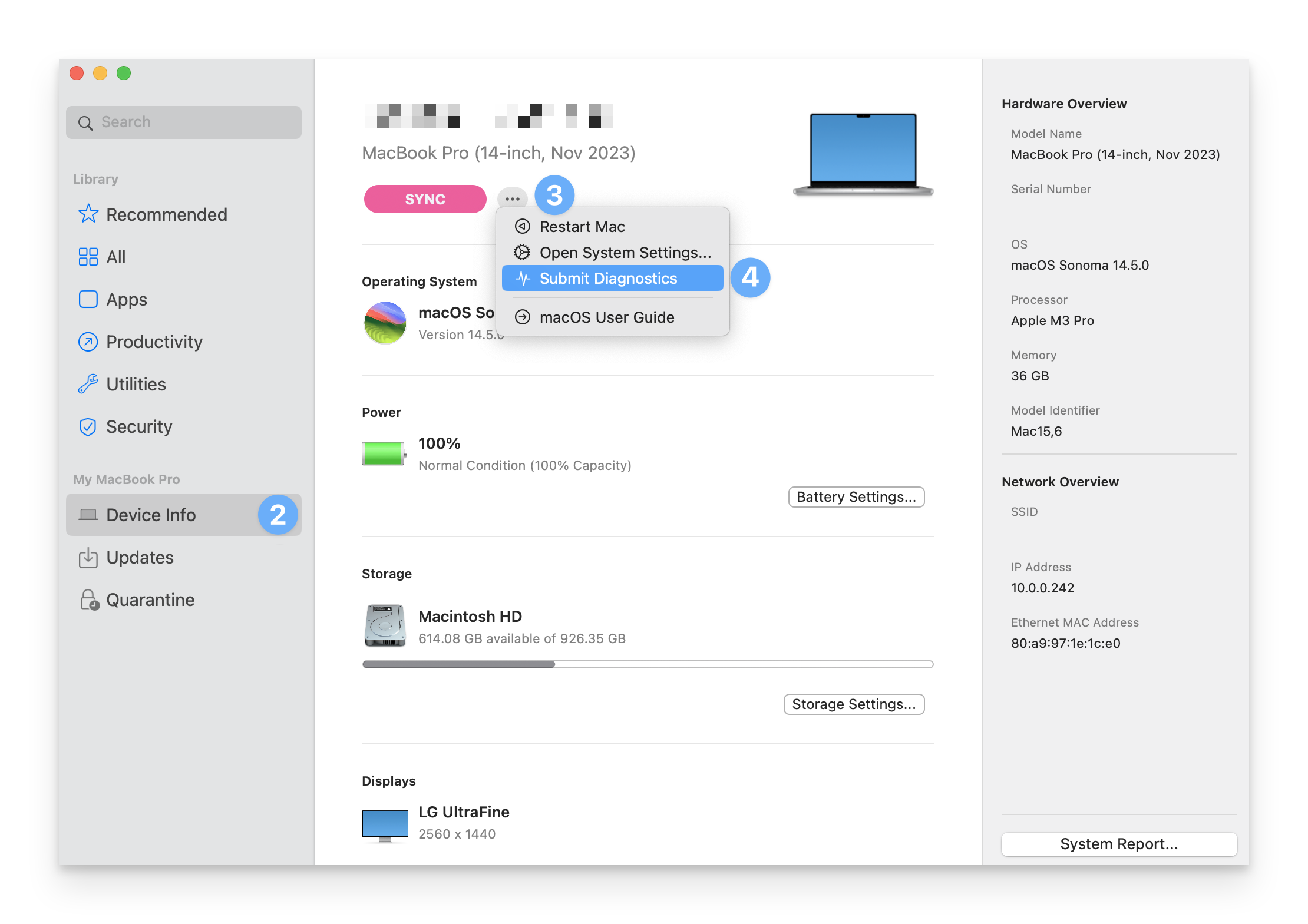 Optionally, add comments describing the issue you're experiencing.
Click **Submit**.
Optionally, add comments describing the issue you're experiencing.
Click **Submit**.
 #### Submitting Diagnostics using the Command-Line Interface
This method requires administrator privileges.
Open **Terminal.app**.
Run the following Terminal command, using `--comment` to add optional comments describing the issue you're experiencing:
```bash theme={null}
sudo iru submit-diagnostics [--comment text]
```
### Data and Privacy Considerations
When a user submits diagnostics, the Iru Agent collects the following information from an enrolled Mac:
* System logs
* OS version
* Application inventory
* Device configuration details
* Network information
* Error messages and alerts
Iru Endpoint ensures that the diagnostic data collected is used solely for troubleshooting and improving device management and support, respecting user privacy. For more information on privacy with Iru Endpoint, see our [Privacy Policy](https://www.iru.com/legal/privacy/).
#### Submitting Diagnostics using the Command-Line Interface
This method requires administrator privileges.
Open **Terminal.app**.
Run the following Terminal command, using `--comment` to add optional comments describing the issue you're experiencing:
```bash theme={null}
sudo iru submit-diagnostics [--comment text]
```
### Data and Privacy Considerations
When a user submits diagnostics, the Iru Agent collects the following information from an enrolled Mac:
* System logs
* OS version
* Application inventory
* Device configuration details
* Network information
* Error messages and alerts
Iru Endpoint ensures that the diagnostic data collected is used solely for troubleshooting and improving device management and support, respecting user privacy. For more information on privacy with Iru Endpoint, see our [Privacy Policy](https://www.iru.com/legal/privacy/).