> ## Documentation Index
> Fetch the complete documentation index at: https://docs.iru.com/llms.txt
> Use this file to discover all available pages before exploring further.
# Iru Endpoint
> Connect Iru Endpoint to Iru Compliance using the Iru Endpoint API. Select your API region, configure your tenant URL, and authenticate with a Bearer token.
### About Iru Endpoint
**Iru Endpoint** manages **Apple**, **Windows**, and **Android** devices. Apple coverage includes macOS, iOS, iPadOS, tvOS, and visionOS. Turn on Windows and Android in your tenant to use enrollment and policies there. For setup order and prerequisites, see **[Getting Started](/en/endpoint/getting-started/getting-started)**.
Endpoint includes zero-touch deployment, app and OS patch management, compliance templates, threat detection, and APIs for automation. With this source **on**, Compliance can collect **Artifacts** about **how devices are managed** and **how policy lines up with what is deployed**, based on what your framework actions ask for.
### What You May See Collected
Depending on product configuration, examples include:
* Device enrollment and management records
* Configuration or policy enforcement signals exposed to Compliance
* Endpoint compliance or posture summaries
* Inventory and assignment context relevant to controls
### Typical Control Themes
* Endpoint management and asset inventory
* Device security configuration
* Operational visibility over managed endpoints
### Endpoint Documentation
Configure devices, policies, and agents using the **[Getting Started](/en/endpoint/getting-started/getting-started)** path: foundation setup, platform setup, **Blueprints and Library**, and enrollment. Map Compliance **actions** to the **Artifacts** your security team expects (for example enrollment proof, configuration exports, or reports).
### Prerequisites
* An **Iru API** token from **Iru Endpoint** with **GET** / **Read** enabled for every API permission your security policy allows. This connector only reads from **Iru Endpoint**; when your policy permits broader **GET** access, **Iru Compliance** can attach more **Artifacts** automatically.
When you use the **Iru Endpoint** source with **Iru Compliance**, your API token is used on the **Iru Endpoint Management API** to gather **Artifacts**, and those requests count toward your tenant's rate limit. See **[Considerations](/en/endpoint/api/iru-api-overview#considerations)** in [Iru API Overview](/en/endpoint/api/iru-api-overview) (open **Rate limits**).
### Connect Iru Endpoint to Iru
Complete this tab before you connect the source in Compliance.
Before you connect, read **[Iru API Overview](/en/endpoint/api/iru-api-overview)** for bearer authentication, how to create tokens, and where your tenant **Iru API URL** appears (US vs EU).
Your **`app`** value is the base-domain segment in that URL. It is the segment immediately before `.api.kandji.io`, `.api.eu.kandji.io`, or `.api.iru.com`. You’ll enter the same **region** and **`app`** in the Compliance connector wizard.
In the **Iru Endpoint** web app, open **Access** from the account menu. Select **Add Token**, enter a **Name** and **Description**, then create the token and copy the **API token** (the bearer credential **Access** shows once) to a secure place. In the Compliance connector wizard you paste that same value into the input labeled **Bearer JWT**. That text is the **field label** for where the bearer token is entered, not a separate credential type from the API token in [Iru API Overview](/en/endpoint/api/iru-api-overview).
In **Access**, open the **API tokens** tab and find **Your organization's API URL**. Use that hostname to double-check **US vs EU** and the **`app`** segment when you run the Compliance wizard (**Select API region** and **Configure the app variable**).
For the new token, open **Configure** and set **Permissions**: turn on **GET** for every API permission your security policy allows. **GET** is equivalent to **Read** in this model. Compliance collection is read-only, so you do not need the other permission levels for this connector. The more **GET** coverage the token has, the more **Artifacts** Iru can discover and attach from this source automatically.
Continue on the [**Iru Compliance**](#iru-compliance) tab.
Finish the [**Iru Endpoint**](#iru-endpoint) tab first so you have the **API token** from **Access** (you will paste it into the wizard field labeled **Bearer JWT**), the **`app`** segment, **US** or **EU** host, and **GET** permissions before you turn on the source here.
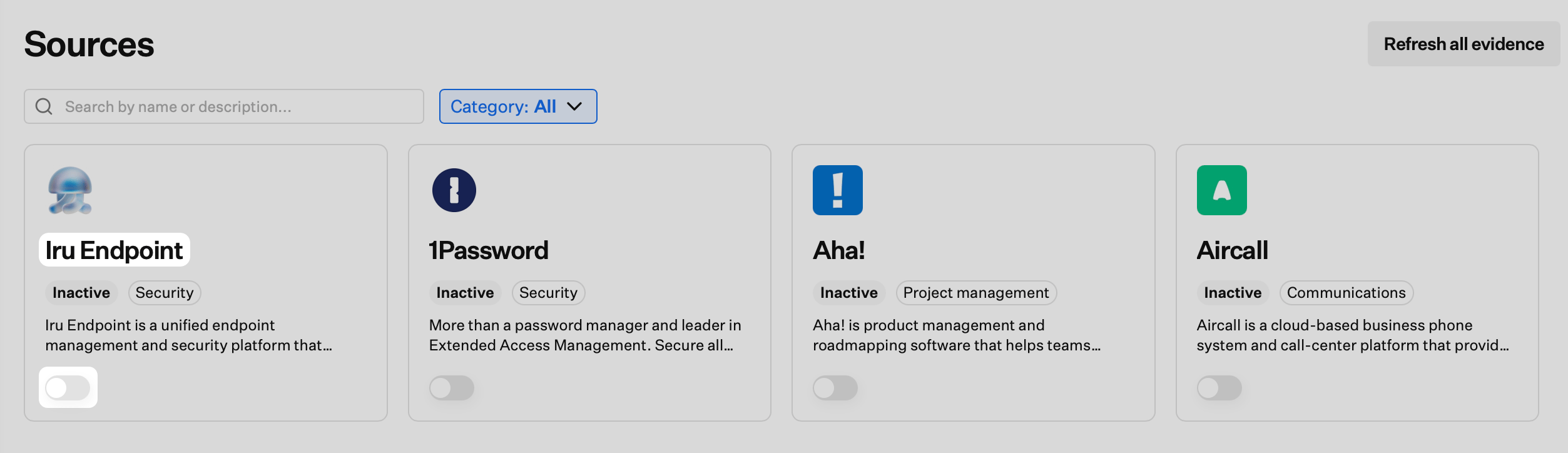
In Iru Compliance, on the left navigation bar, expand **Compliance** and select **Sources**.
 Find **Iru Endpoint** (set **Category** to **Security** or use **Search by name or description**).
On that card, turn on the **toggle**. A **new browser tab** opens for **Iru is requesting access to external services** (the connector wizard).
Find **Iru Endpoint** (set **Category** to **Security** or use **Search by name or description**).
On that card, turn on the **toggle**. A **new browser tab** opens for **Iru is requesting access to external services** (the connector wizard).
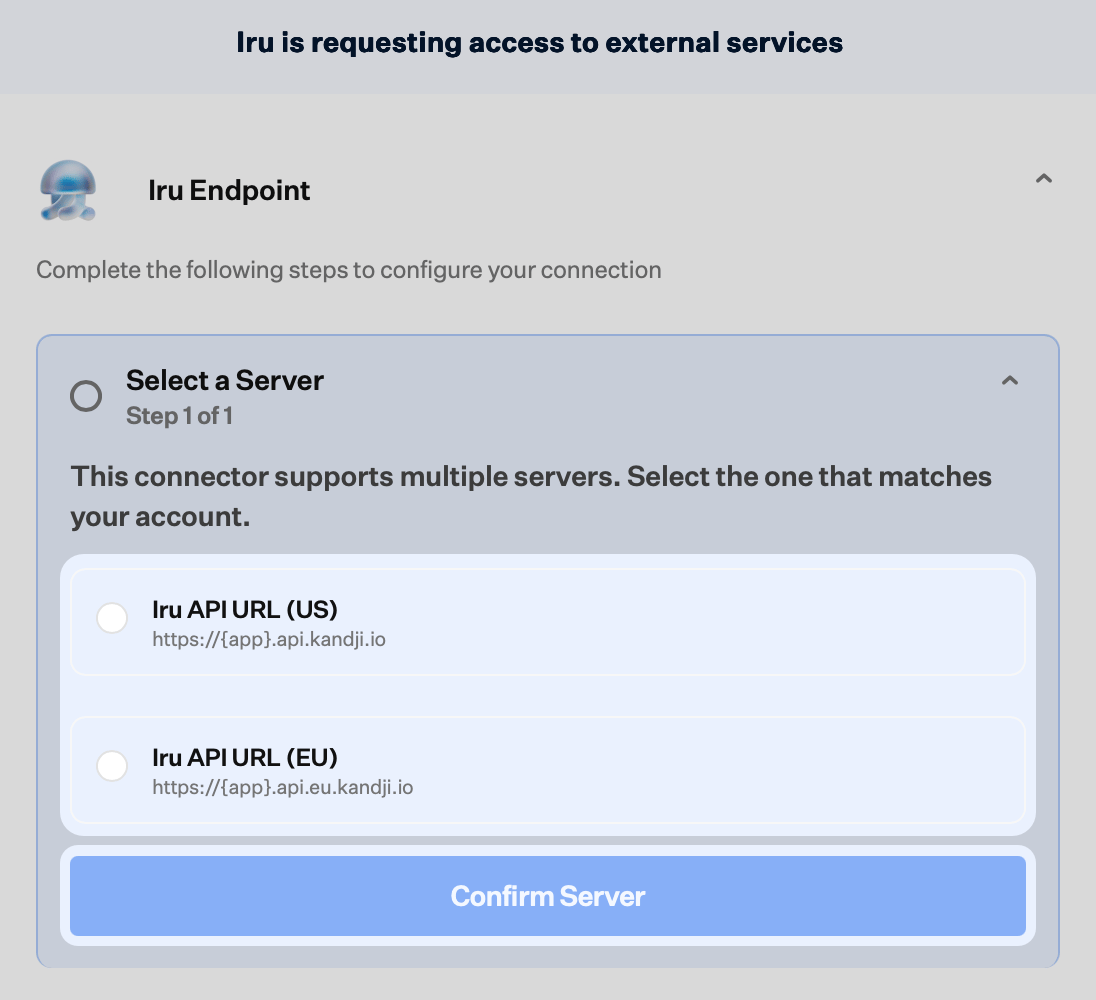
 **Select a server:** Choose **Iru API URL (US)** or **Iru API URL (EU)** to match where your tenant is hosted, then **Confirm Server**. Here `{app}` is the base domain segment for the Iru API.
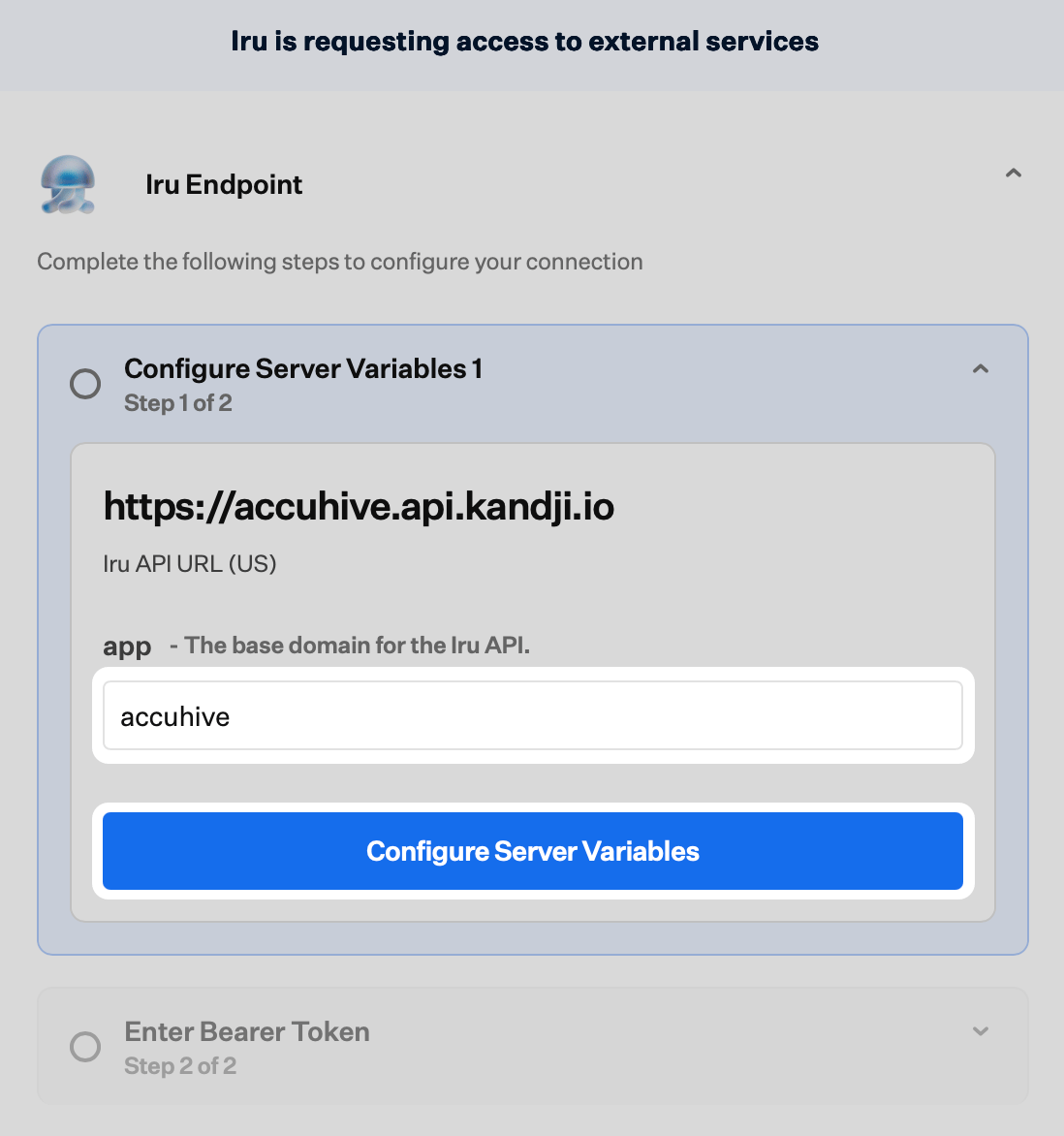
 In the **`app`** field, enter only the subdomain from your **Iru API URL** (the part before `.api.` in the hostname). For example, if the API URL is `accuhive.api.kandji.io`, enter `accuhive`.
Continue with **Configure Server Variables**.
In the **`app`** field, enter only the subdomain from your **Iru API URL** (the part before `.api.` in the hostname). For example, if the API URL is `accuhive.api.kandji.io`, enter `accuhive`.
Continue with **Configure Server Variables**.
 On **Enter Bearer Token**, the wizard shows an input labeled **Bearer JWT**. Paste the **API token** you copied from **Access** there. The field name describes where the bearer token is entered; the value is the same token where you enabled **GET** / **Read** in **Configure GET permissions for Compliance**.
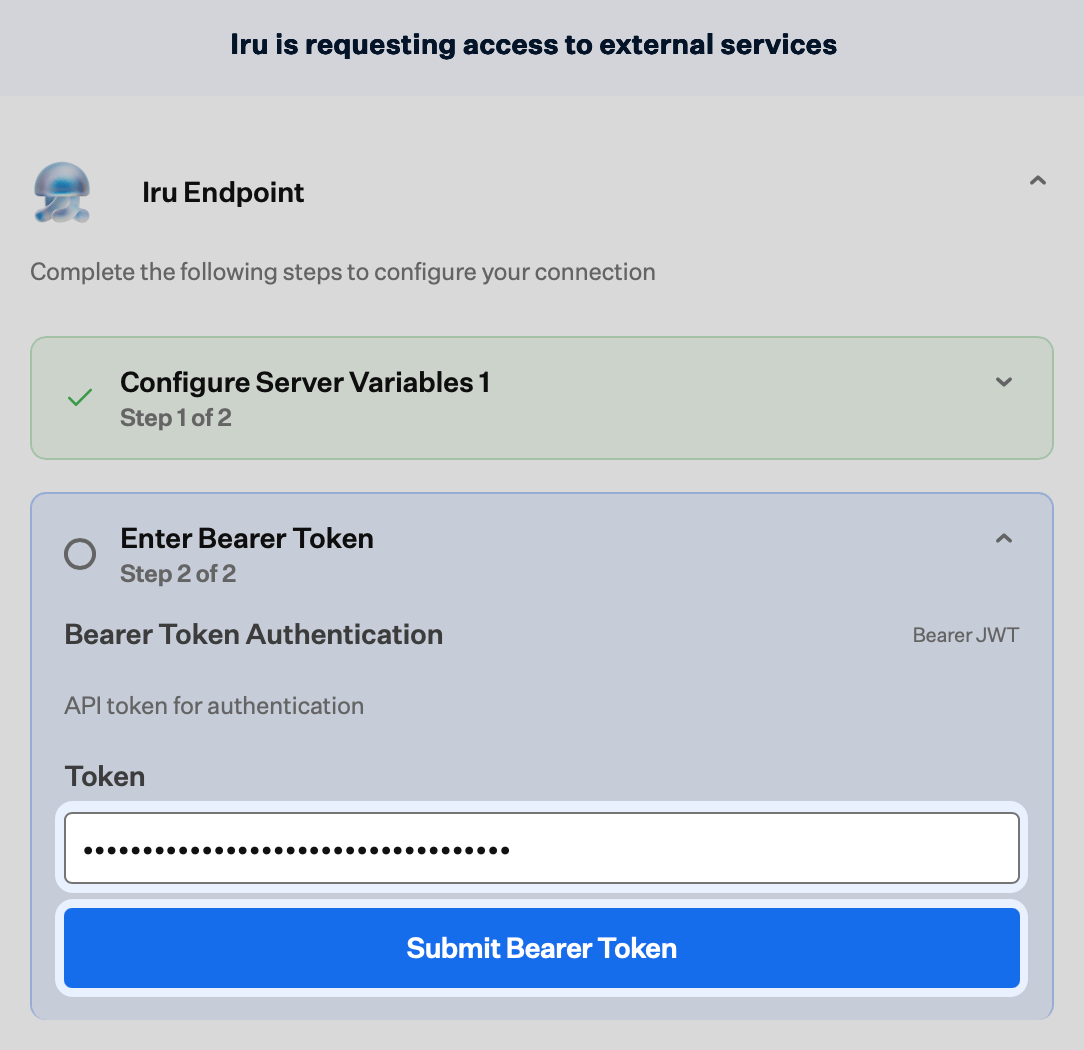 Click **Submit Bearer Token**. When the connection succeeds, the wizard shows **Connection Configured**.
Close the **Iru is requesting access to external services** browser tab, then return to **Compliance** → **Sources** and confirm the **Iru Endpoint** card is **Active**.
### Troubleshooting
Check **pop-up blocker** settings for the Iru site and try again.
Confirm the token is complete, not expired, and includes **GET** (**Read**) access for the API permissions **Iru Compliance** needs for this source. Verify the **US vs EU** server choice and the **`app`** value (the base domain for the Iru API) match **[Iru API Overview](/en/endpoint/api/iru-api-overview)**.
If **Artifacts** from **Iru Endpoint** are slow to show up or stop updating, work through these checks:
* **Rate limits:** Your tenant might be hitting the **Iru Endpoint API rate limit**. **Iru Compliance** uses your token on the same hourly quota as your other scripts and integrations, so bursts elsewhere can leave this source waiting until usage falls. See **Rate limits** under **[Considerations](/en/endpoint/api/iru-api-overview#considerations)** in [Iru API Overview](/en/endpoint/api/iru-api-overview).
* **Permissions:** The token might be missing **GET** access for routes this source needs. In **Iru Endpoint**, open **Access**, select the token, and review what is enabled under **Edit** against what your framework actions expect.
* **Timing:** **Artifacts** refresh when **Iru Compliance** runs this source on its schedule, so new Endpoint data is not always visible immediately. If you have already ruled out rate limits and permissions, wait for the next collection cycle and check the **Artifacts** page again.
### Related Articles
Bearer tokens, tenant **Iru API URL**, and API permissions.
Frameworks, actions, and **Artifacts**.
How Endpoint, Compliance, and Identity fit together.
Browse and manage every Compliance source.
Click **Submit Bearer Token**. When the connection succeeds, the wizard shows **Connection Configured**.
Close the **Iru is requesting access to external services** browser tab, then return to **Compliance** → **Sources** and confirm the **Iru Endpoint** card is **Active**.
### Troubleshooting
Check **pop-up blocker** settings for the Iru site and try again.
Confirm the token is complete, not expired, and includes **GET** (**Read**) access for the API permissions **Iru Compliance** needs for this source. Verify the **US vs EU** server choice and the **`app`** value (the base domain for the Iru API) match **[Iru API Overview](/en/endpoint/api/iru-api-overview)**.
If **Artifacts** from **Iru Endpoint** are slow to show up or stop updating, work through these checks:
* **Rate limits:** Your tenant might be hitting the **Iru Endpoint API rate limit**. **Iru Compliance** uses your token on the same hourly quota as your other scripts and integrations, so bursts elsewhere can leave this source waiting until usage falls. See **Rate limits** under **[Considerations](/en/endpoint/api/iru-api-overview#considerations)** in [Iru API Overview](/en/endpoint/api/iru-api-overview).
* **Permissions:** The token might be missing **GET** access for routes this source needs. In **Iru Endpoint**, open **Access**, select the token, and review what is enabled under **Edit** against what your framework actions expect.
* **Timing:** **Artifacts** refresh when **Iru Compliance** runs this source on its schedule, so new Endpoint data is not always visible immediately. If you have already ruled out rate limits and permissions, wait for the next collection cycle and check the **Artifacts** page again.
### Related Articles
Bearer tokens, tenant **Iru API URL**, and API permissions.
Frameworks, actions, and **Artifacts**.
How Endpoint, Compliance, and Identity fit together.
Browse and manage every Compliance source.