> ## Documentation Index
> Fetch the complete documentation index at: https://docs.iru.com/llms.txt
> Use this file to discover all available pages before exploring further.
# Google Cloud Platform
> Connect Google Cloud Platform to Iru Compliance with a read-only service account and JSON key.
### About Google Cloud Platform
Iru connects to your **Google Cloud** project with a **service account** and a **JSON key**. Create the account once, grant the **read-only** roles you need, then upload the key in Iru. Iru collects configuration and inventory evidence. It does **not** change resources in your project.
### How It Works
Iru authenticates with the service account **JSON key** you upload in the connector wizard. Grant roles at the **project** level so Iru can read resources in that project.
| Detail | Value |
| ------------------ | ------------------------ |
| **Category** | Cloud infrastructure |
| **Authentication** | Service account JSON key |
#### What Iru collects
| Source | Evidence Iru collects |
| ----------------------------------- | -------------------------------------------------------------------------------------------------------------------------------------------------- |
| Google BigQuery | Dataset and table inventory, dataset access, encryption, and expiration settings |
| Google Cloud IAM | Principals, service accounts, custom roles, and role bindings across the resource hierarchy |
| Google Cloud Key Management Service | Key rings and keys, including protection level, rotation schedule, and state |
| Google Cloud Logging | Log sinks, retention settings, and admin activity records (excluding logs with private contents) |
| Google Cloud Storage | Bucket inventory and settings such as public access prevention, uniform bucket-level access, versioning, retention, encryption, and access logging |
| Google Compute Engine | VPC networks, subnets, firewall rules, and routes |
#### Read-only roles
Add each role you need. All of these roles are read-only.
| Role | Role ID | What it covers |
| ---------------------- | ----------------------------- | ---------------------------------------------------------------------------------- |
| Security Auditor | `roles/iam.securityAuditor` | IAM: resources, folder and project hierarchy, policies, and security configuration |
| BigQuery Data Viewer | `roles/bigquery.dataViewer` | BigQuery: datasets and their contents |
| Cloud KMS Viewer | `roles/cloudkms.viewer` | Cloud KMS: get and list on keys and key rings |
| Compute Network Viewer | `roles/compute.networkViewer` | Compute Engine: read-only networking resources |
| Logs Viewer | `roles/logging.viewer` | Cloud Logging: view logs except those with private contents |
| Storage Bucket Viewer | `roles/storage.bucketViewer` | Cloud Storage: buckets and metadata (excluding IAM policies) |
Official references: [Service accounts](https://cloud.google.com/iam/docs/service-account-overview), [Create service account keys](https://cloud.google.com/iam/docs/keys-create-delete), [Organization policies for service accounts](https://docs.cloud.google.com/iam/docs/service-accounts-custom-constraints).
### Prerequisites
* Permission in Google Cloud to create **service accounts** and **service account keys** in the project you want Iru to monitor (for example **Service Account Admin** and **Service Account Key Admin**).
* **Admin** access to the Iru web app.
* The Google Cloud **project** you want Iru to monitor. Grant roles on that project so evidence covers its resources.
### Connect Google Cloud Platform to Iru
Create the service account and JSON key in **Google Cloud**, then upload the key in **Iru Compliance**.
Complete this tab before you turn on **Google Cloud Platform** in **Iru Compliance**.
#### Create the service account and grant roles
Open the [Google Cloud console](https://console.cloud.google.com/) and select the **project** Iru should monitor.
In the navigation menu, go to **IAM & Admin** → **Service Accounts**.
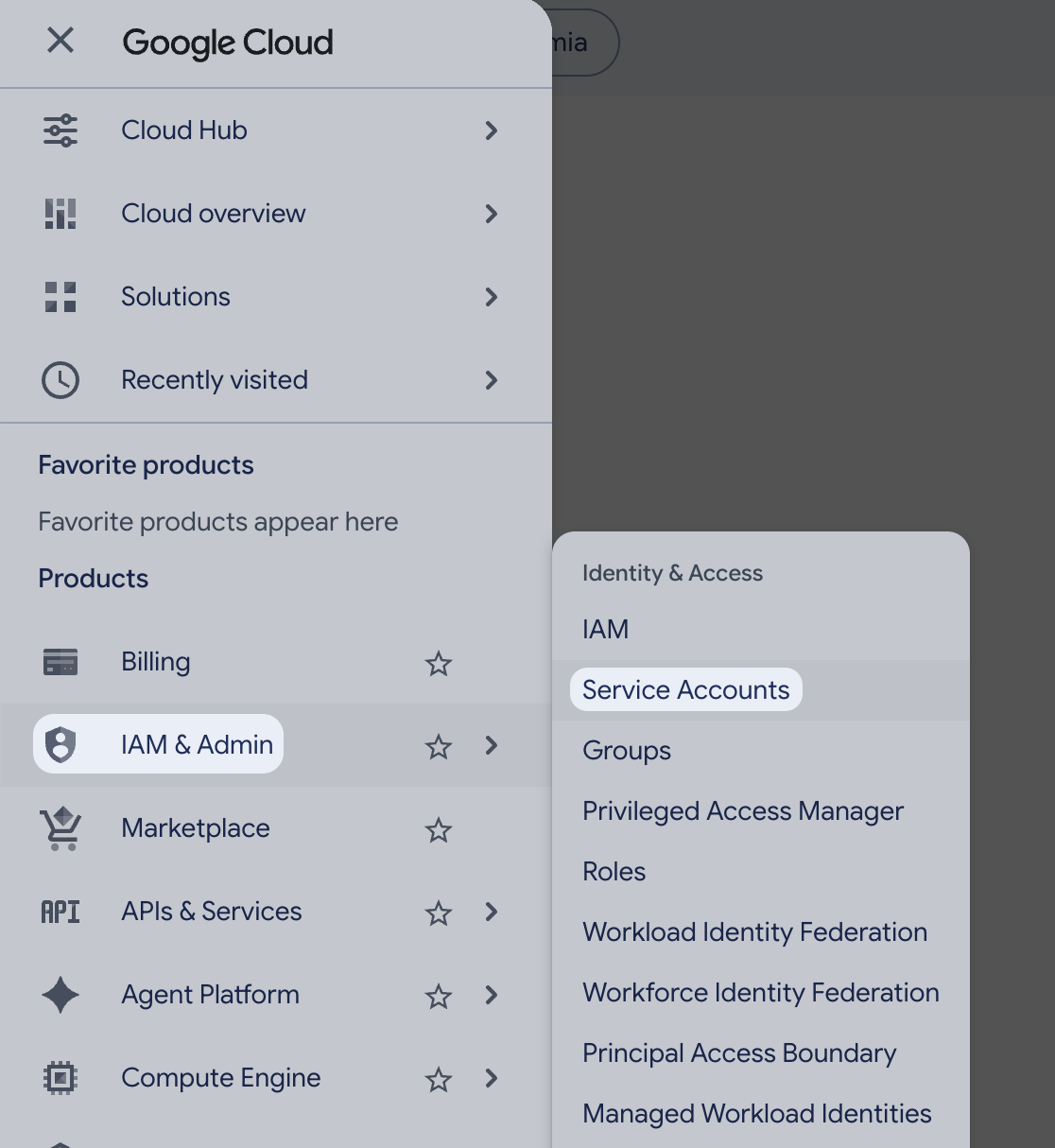 Click **Create service account**. Enter a **Service account name** (for example **Iru Compliance**). Google fills in the service account ID and email. Click **Create and continue**.
In the **Permissions** step, add each role from the [**Read-only roles**](#read-only-roles) table that you need, then click **Continue** and **Done**.
Click **Create service account**. Enter a **Service account name** (for example **Iru Compliance**). Google fills in the service account ID and email. Click **Create and continue**.
In the **Permissions** step, add each role from the [**Read-only roles**](#read-only-roles) table that you need, then click **Continue** and **Done**.
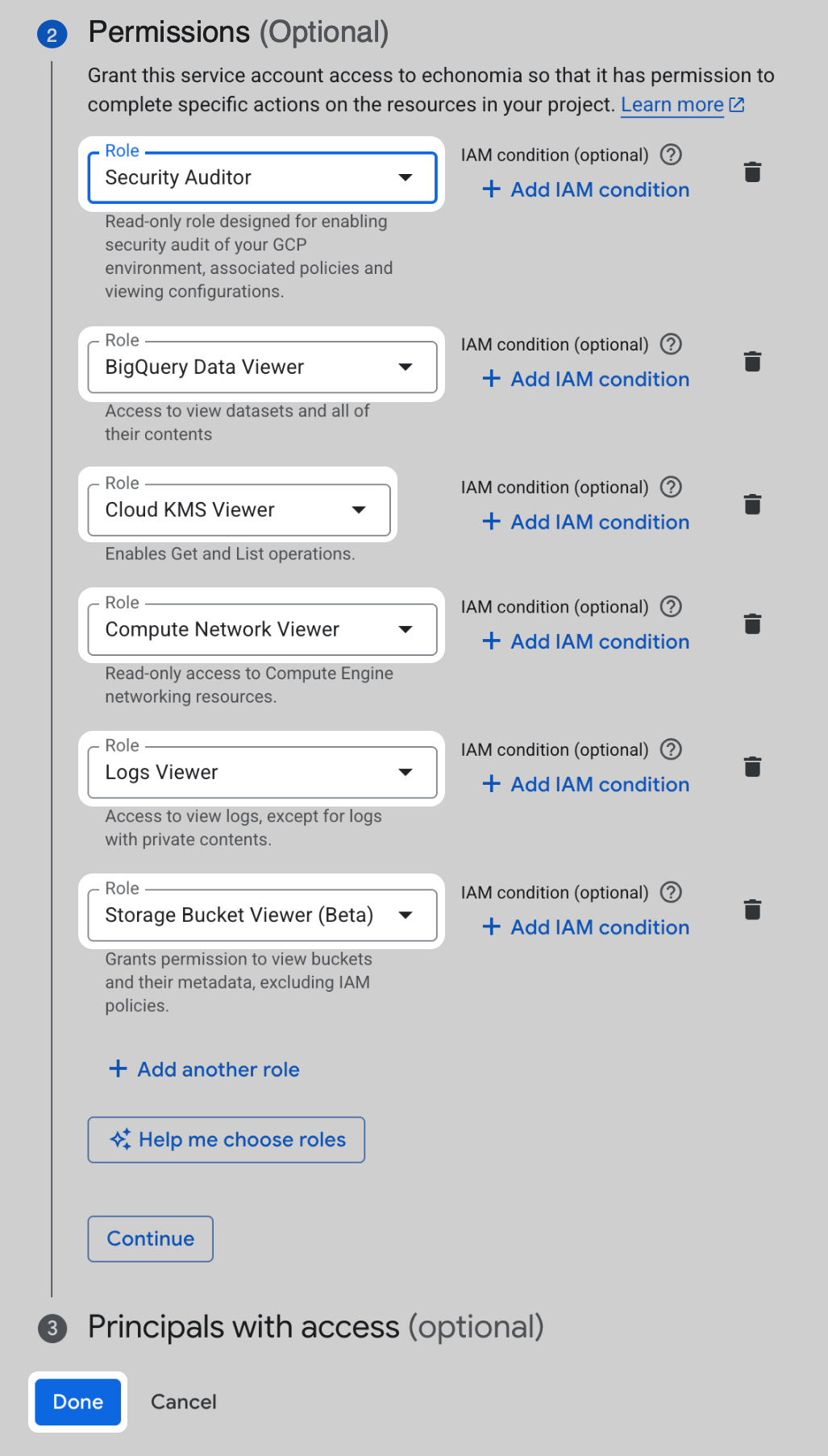 You can grant only the roles you need now. Adding all six means you do not have to return to the console later.
#### Create and download the JSON key
Go to **IAM & Admin** → **Service Accounts**, then open the account you created.
Select the **Keys** tab.
Click **Add key**.
You can grant only the roles you need now. Adding all six means you do not have to return to the console later.
#### Create and download the JSON key
Go to **IAM & Admin** → **Service Accounts**, then open the account you created.
Select the **Keys** tab.
Click **Add key**.
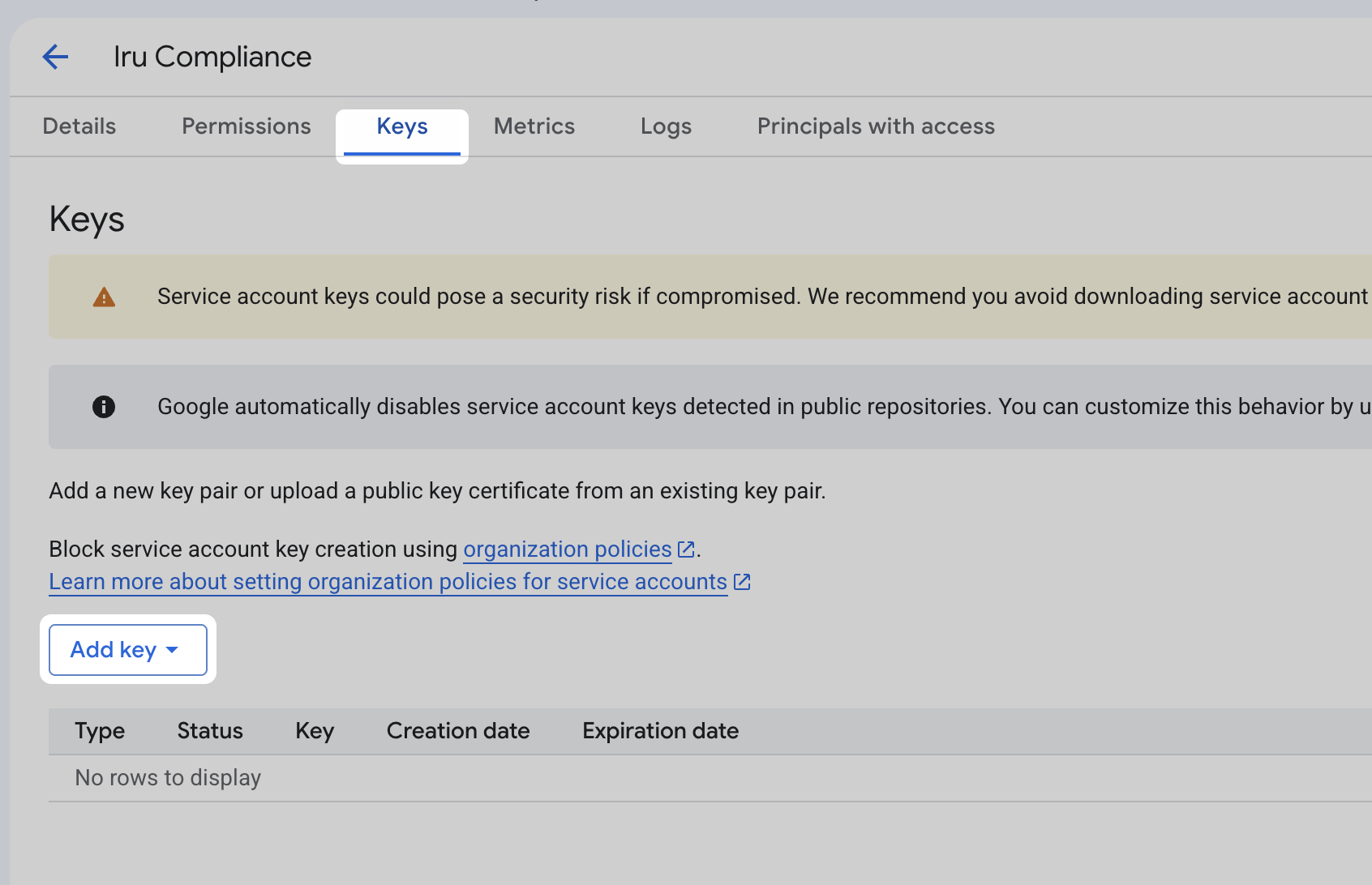 Click **Create new key**.
Select **JSON**, then click **Create**. The key file downloads to your computer.
Click **Create new key**.
Select **JSON**, then click **Create**. The key file downloads to your computer.
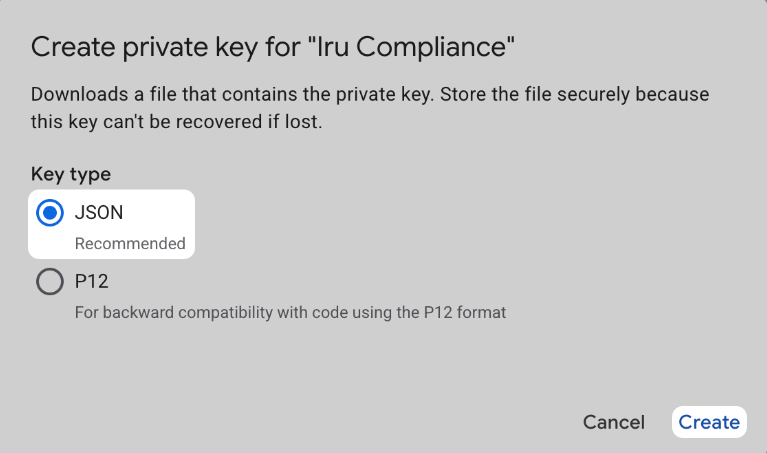 Google cannot recover this file if you lose it. Anyone with the file has the service account’s access. Store it in a password manager or secrets vault, and delete your local copy after you connect the source in Iru.
Some organizations limit which predefined roles an admin can grant. Build a custom role with the same read-only permissions instead:
1. Go to **IAM & Admin** → **Roles** and click **Create role**.
2. Add the permissions you need. Use the role IDs in [**Read-only roles**](#read-only-roles) as a reference for what each predefined role includes.
3. Assign the custom role to the service account instead of the predefined roles.
If you prefer the CLI, run this with **gcloud** while signed in as a user who can create service accounts and keys in the project. Set `PROJECT_ID`, then run the script.
```bash theme={null}
# Set these two values, then run the script.
PROJECT_ID="your-project-id"
SA_NAME="iru-compliance"
SA_EMAIL="${SA_NAME}@${PROJECT_ID}.iam.gserviceaccount.com"
gcloud config set project "$PROJECT_ID"
# 1. Create the service account
gcloud iam service-accounts create "$SA_NAME" \
--display-name="Iru Compliance"
# 2. Bind the read-only roles at the project level
for ROLE in \
roles/iam.securityAuditor \
roles/bigquery.dataViewer \
roles/cloudkms.viewer \
roles/compute.networkViewer \
roles/logging.viewer \
roles/storage.bucketViewer
do
gcloud projects add-iam-policy-binding "$PROJECT_ID" \
--member="serviceAccount:${SA_EMAIL}" \
--role="$ROLE"
done
# 3. Create the JSON key in the current directory
gcloud iam service-accounts keys create iru-compliance-key.json \
--iam-account="$SA_EMAIL"
```
The script writes `iru-compliance-key.json` to the directory you run it from. Upload that file in the [**Iru Compliance**](#iru-compliance) tab.
Continue on the [**Iru Compliance**](#iru-compliance) tab.
Finish the [**Google Cloud**](#google-cloud) tab first so you have the JSON key file.
In Iru Compliance, on the left navigation bar, expand **Compliance** and select **Sources**.
Google cannot recover this file if you lose it. Anyone with the file has the service account’s access. Store it in a password manager or secrets vault, and delete your local copy after you connect the source in Iru.
Some organizations limit which predefined roles an admin can grant. Build a custom role with the same read-only permissions instead:
1. Go to **IAM & Admin** → **Roles** and click **Create role**.
2. Add the permissions you need. Use the role IDs in [**Read-only roles**](#read-only-roles) as a reference for what each predefined role includes.
3. Assign the custom role to the service account instead of the predefined roles.
If you prefer the CLI, run this with **gcloud** while signed in as a user who can create service accounts and keys in the project. Set `PROJECT_ID`, then run the script.
```bash theme={null}
# Set these two values, then run the script.
PROJECT_ID="your-project-id"
SA_NAME="iru-compliance"
SA_EMAIL="${SA_NAME}@${PROJECT_ID}.iam.gserviceaccount.com"
gcloud config set project "$PROJECT_ID"
# 1. Create the service account
gcloud iam service-accounts create "$SA_NAME" \
--display-name="Iru Compliance"
# 2. Bind the read-only roles at the project level
for ROLE in \
roles/iam.securityAuditor \
roles/bigquery.dataViewer \
roles/cloudkms.viewer \
roles/compute.networkViewer \
roles/logging.viewer \
roles/storage.bucketViewer
do
gcloud projects add-iam-policy-binding "$PROJECT_ID" \
--member="serviceAccount:${SA_EMAIL}" \
--role="$ROLE"
done
# 3. Create the JSON key in the current directory
gcloud iam service-accounts keys create iru-compliance-key.json \
--iam-account="$SA_EMAIL"
```
The script writes `iru-compliance-key.json` to the directory you run it from. Upload that file in the [**Iru Compliance**](#iru-compliance) tab.
Continue on the [**Iru Compliance**](#iru-compliance) tab.
Finish the [**Google Cloud**](#google-cloud) tab first so you have the JSON key file.
In Iru Compliance, on the left navigation bar, expand **Compliance** and select **Sources**.
 Find **Google Cloud Platform** (set **Category** to **Cloud infrastructure** or use **Search by name or description**). On that card, turn on the **toggle**. A browser tab or window may open for the connector wizard.
On the setup screen, click **Choose File** and select the JSON key you downloaded. The contents of the file appear in the field below.
Click **Save**, then click **Connect**. When the connection succeeds, the wizard shows **Connection Configured**.
Close the **Iru is requesting access to external services** browser tab, then return to **Compliance** → **Sources** and confirm the **Google Cloud Platform** card is **Active**.
### Troubleshooting
Check **pop-up blocker** settings for the Iru site and try again.
If **Create** returns a policy error, your organization may enforce `constraints/iam.disableServiceAccountKeyCreation`. An organization policy administrator must add an exception for your project before you can download a key. See Google’s guide to [organization policies for service accounts](https://docs.cloud.google.com/iam/docs/service-accounts-custom-constraints).
Confirm the JSON key belongs to the service account in the correct **project**, and that the account has the roles listed under [**Read-only roles**](#read-only-roles) for the evidence you need.
### Related Articles
Browse and manage every Compliance source.
Frameworks, actions, and **Artifacts**.
How Endpoint, Compliance, and Identity fit together.
Upload, review, and organize evidence from sources and actions.
Find **Google Cloud Platform** (set **Category** to **Cloud infrastructure** or use **Search by name or description**). On that card, turn on the **toggle**. A browser tab or window may open for the connector wizard.
On the setup screen, click **Choose File** and select the JSON key you downloaded. The contents of the file appear in the field below.
Click **Save**, then click **Connect**. When the connection succeeds, the wizard shows **Connection Configured**.
Close the **Iru is requesting access to external services** browser tab, then return to **Compliance** → **Sources** and confirm the **Google Cloud Platform** card is **Active**.
### Troubleshooting
Check **pop-up blocker** settings for the Iru site and try again.
If **Create** returns a policy error, your organization may enforce `constraints/iam.disableServiceAccountKeyCreation`. An organization policy administrator must add an exception for your project before you can download a key. See Google’s guide to [organization policies for service accounts](https://docs.cloud.google.com/iam/docs/service-accounts-custom-constraints).
Confirm the JSON key belongs to the service account in the correct **project**, and that the account has the roles listed under [**Read-only roles**](#read-only-roles) for the evidence you need.
### Related Articles
Browse and manage every Compliance source.
Frameworks, actions, and **Artifacts**.
How Endpoint, Compliance, and Identity fit together.
Upload, review, and organize evidence from sources and actions.