> ## Documentation Index
> Fetch the complete documentation index at: https://docs.iru.com/llms.txt
> Use this file to discover all available pages before exploring further.
# Platform Workflows
> How frameworks, controls, actions, and evidence fit together in Iru Compliance: setup, assignments, sources, readiness, and audit-ready reporting.
These workflows show how **frameworks**, **controls**, **actions**, and **artifacts** connect in Iru Compliance, from choosing a standard through evidence collection and readiness.
Need help with a step? [Contact Iru Support](/en/iru/iru-support/access-to-iru-support).
## How It Works
You select frameworks, refine controls and actions, attach evidence (manually or from **Sources**), and track readiness in framework and action views. Integrations can attach evidence automatically when they are connected and **action** descriptions name the system and evidence type clearly.
As integrations and policy artifacts change, [Adaptive Compliance](/en/compliance/adaptive-compliance) can propose updates to control and action text. Publish and update policies in [Policies Management](/en/compliance/policies-management). You review each recommendation and approve only the changes you want; audit periods and uploaded evidence are not changed by that workflow.
## Core Workflow: From Framework to Compliance
#### Framework Setup
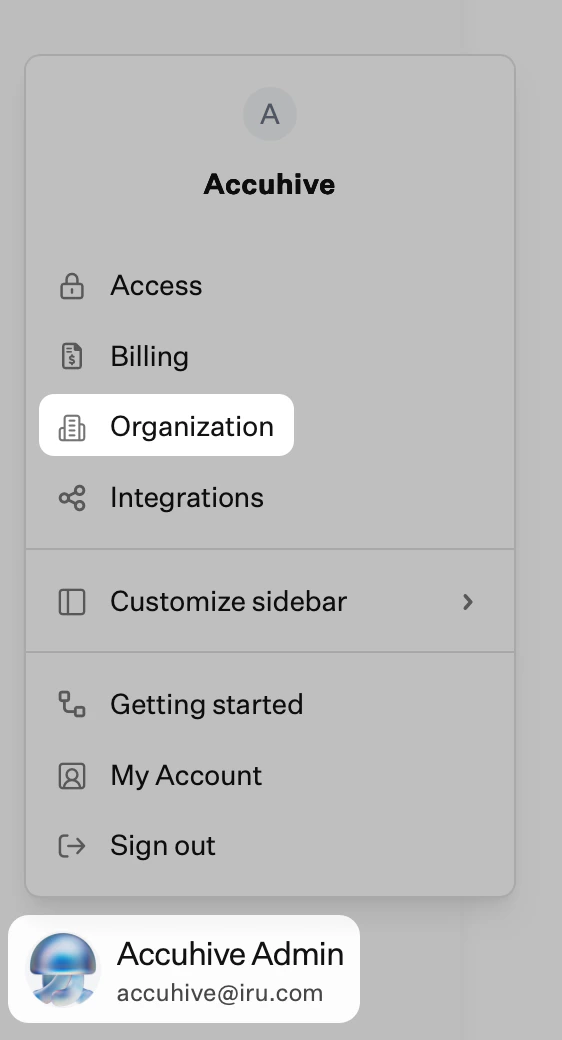
In the sidebar, click the [**Account Menu Button**](/en/iru/platform-overview/account-menu) (same flow as **Recommended setup** in [Getting Started With Compliance](/en/compliance/getting-started-with-compliance)).
Select **Organization** to open **Organization profile**. Iru may also prompt for this during framework setup.
 On **Organization profile**, click **Edit** at the top right.
Fill in the fields that apply. For example: **company logo**, **company name**, **business description**, **industry**, **business type**, **company size**, **company language**, whether you have an **IT department**, and **security team size**. Keep this information current as your environment changes.
Click **Save changes**.
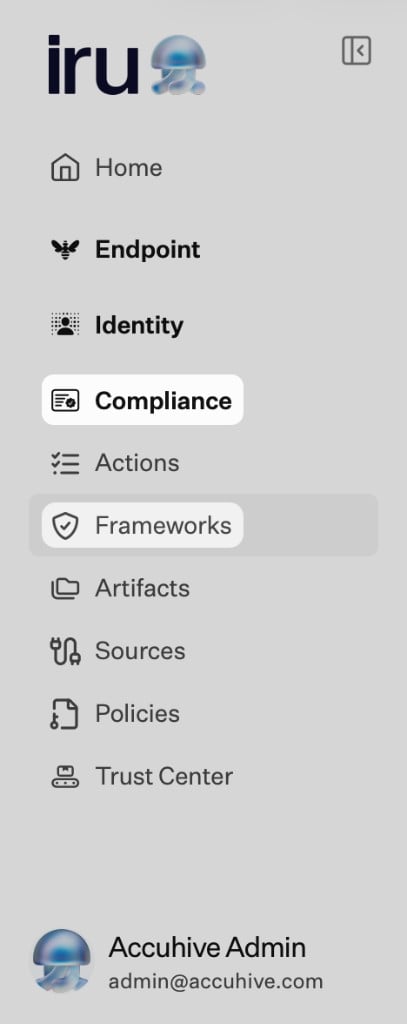
On the left navigation bar, expand **Compliance** and select **Frameworks**.
On **Organization profile**, click **Edit** at the top right.
Fill in the fields that apply. For example: **company logo**, **company name**, **business description**, **industry**, **business type**, **company size**, **company language**, whether you have an **IT department**, and **security team size**. Keep this information current as your environment changes.
Click **Save changes**.
On the left navigation bar, expand **Compliance** and select **Frameworks**.
 Click **Add framework**, choose a standard, then complete **Select your \[framework] starting point** (generate, migrate, CSV, or manual). See [Frameworks Management](/en/compliance/frameworks-management).
 Review and edit generated or imported controls and actions as needed.
#### Control Management
Open each framework and review generated or imported controls.
Edit wording, add controls, or remove items so they match how your organization operates. When **Sources** or policy artifacts change later, check **Home** → **Insights** or **Review Control Updates** on a framework for Iru AI recommendations. Update policies in [Policies Management](/en/compliance/policies-management). See [Adaptive Compliance](/en/compliance/adaptive-compliance).
Confirm each control still maps to the right framework requirement and that owners and evidence expectations are clear.
#### Action Execution
Assign actions to owners and set due dates.
Owners read the action text and confirm what evidence is required.
Upload artifacts or let connected **Sources** attach them when descriptions and permissions allow.
Use comments and delegation when work needs to move between people.
Watch status and deadlines on the **Actions** views and framework readiness.
#### Evidence Management
Add files from **Artifacts** or from an action or control when the UI offers an upload.
Connect **Sources** so integrations can attach artifacts when action text and permissions align.
Let validation run where the product supports it, then confirm artifacts sit on the right actions and controls.
Before an audit window, spot-check that required evidence is present and current.
#### Readiness Assessment
Use framework and action views to see what is still open.
Fix missing actions, weak evidence, or failed validation before you report readiness.
Export or summarize status for stakeholders using the reports your tenant provides.
## Integration Workflows
#### Automated Evidence Collection
Expand **Compliance**, select **Sources**, and turn on the **toggle** for each integration. See [Sources Management](/en/compliance/sources-management) for connector guides.
Review and edit generated or imported controls and actions as needed.
#### Control Management
Open each framework and review generated or imported controls.
Edit wording, add controls, or remove items so they match how your organization operates. When **Sources** or policy artifacts change later, check **Home** → **Insights** or **Review Control Updates** on a framework for Iru AI recommendations. Update policies in [Policies Management](/en/compliance/policies-management). See [Adaptive Compliance](/en/compliance/adaptive-compliance).
Confirm each control still maps to the right framework requirement and that owners and evidence expectations are clear.
#### Action Execution
Assign actions to owners and set due dates.
Owners read the action text and confirm what evidence is required.
Upload artifacts or let connected **Sources** attach them when descriptions and permissions allow.
Use comments and delegation when work needs to move between people.
Watch status and deadlines on the **Actions** views and framework readiness.
#### Evidence Management
Add files from **Artifacts** or from an action or control when the UI offers an upload.
Connect **Sources** so integrations can attach artifacts when action text and permissions align.
Let validation run where the product supports it, then confirm artifacts sit on the right actions and controls.
Before an audit window, spot-check that required evidence is present and current.
#### Readiness Assessment
Use framework and action views to see what is still open.
Fix missing actions, weak evidence, or failed validation before you report readiness.
Export or summarize status for stakeholders using the reports your tenant provides.
## Integration Workflows
#### Automated Evidence Collection
Expand **Compliance**, select **Sources**, and turn on the **toggle** for each integration. See [Sources Management](/en/compliance/sources-management) for connector guides.
 In each action, name the system and evidence type so connectors know what to fetch (see [Actions Management](/en/compliance/actions-management)).
Sources refresh on a schedule; status and last sync appear on each source card. New, updated, or removed connections can prompt control update recommendations within about a day. See [Adaptive Compliance](/en/compliance/adaptive-compliance).
Review attached artifacts and validation results on the action or control.
#### Manual Evidence Upload
Pick policies, exports, screenshots, or other files that satisfy the action or control. Create policies in [Policies Management](/en/compliance/policies-management) or upload files from **Artifacts**.
Add titles and descriptions when prompted, then upload (see [Artifacts Management](/en/compliance/artifacts-management)).
Address any failed validation or replace files that are out of date.
## Collaboration Workflows
#### Team Coordination
Give actions to owners; reassign or delegate when responsibility shifts.
Use comments for questions and the activity log to see what changed. For a tenant-wide view of compliance activity, see [Unified Activity](/en/iru/platform-overview/unified-activity).
Track due dates and notifications so work does not stall.
#### Audit Preparation
Confirm each required control has supporting artifacts in Iru.
Upload missing files, fix failed validation, or adjust actions before the audit.
Export or hand off bundles your auditor expects (reports, folders, or Trust Center links, depending on your process).
## Related Articles
Recommended setup order.
Policy library, publishing, and acknowledgements.
Uploads, validation, and linking evidence to actions.
Assign work and attach evidence to actions.
Review control and action updates after source or policy changes.
In each action, name the system and evidence type so connectors know what to fetch (see [Actions Management](/en/compliance/actions-management)).
Sources refresh on a schedule; status and last sync appear on each source card. New, updated, or removed connections can prompt control update recommendations within about a day. See [Adaptive Compliance](/en/compliance/adaptive-compliance).
Review attached artifacts and validation results on the action or control.
#### Manual Evidence Upload
Pick policies, exports, screenshots, or other files that satisfy the action or control. Create policies in [Policies Management](/en/compliance/policies-management) or upload files from **Artifacts**.
Add titles and descriptions when prompted, then upload (see [Artifacts Management](/en/compliance/artifacts-management)).
Address any failed validation or replace files that are out of date.
## Collaboration Workflows
#### Team Coordination
Give actions to owners; reassign or delegate when responsibility shifts.
Use comments for questions and the activity log to see what changed. For a tenant-wide view of compliance activity, see [Unified Activity](/en/iru/platform-overview/unified-activity).
Track due dates and notifications so work does not stall.
#### Audit Preparation
Confirm each required control has supporting artifacts in Iru.
Upload missing files, fix failed validation, or adjust actions before the audit.
Export or hand off bundles your auditor expects (reports, folders, or Trust Center links, depending on your process).
## Related Articles
Recommended setup order.
Policy library, publishing, and acknowledgements.
Uploads, validation, and linking evidence to actions.
Assign work and attach evidence to actions.
Review control and action updates after source or policy changes.