> ## Documentation Index
> Fetch the complete documentation index at: https://docs.iru.com/llms.txt
> Use this file to discover all available pages before exploring further.
# Artifacts Management
> Upload, organize, and manage compliance artifacts and evidence in Iru. Attach files to actions, validate evidence, and prepare for audits.
The **Artifacts** page is the home for compliance evidence: files, exports, and records linked to **actions** and **controls**. Use it to upload proof, review what **Sources** attached, and filter the list when you prepare for an audit.
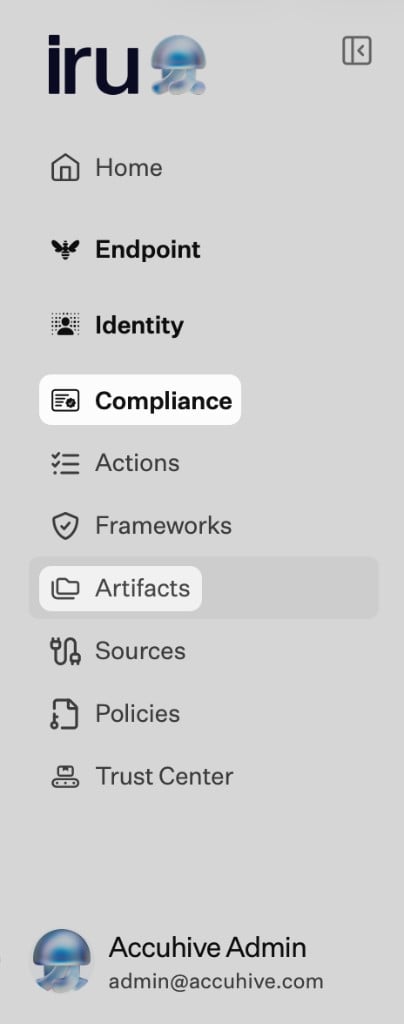
On the left navigation bar, expand **Compliance** and select **Artifacts**.
 Need help with a step? [Contact Iru Support](/en/iru/iru-support/access-to-iru-support).
## Where Evidence Comes from
* **Manual uploads**: Policies (create and publish them in [Policies Management](/en/compliance/policies-management), or upload them as artifacts from **Artifacts**), screenshots, signed attestations, spreadsheets, PDFs, and similar files from **Artifacts** or an action or control when the UI offers an upload.
* **Connected sources**: Integrations that attach artifacts when **action** descriptions and source permissions allow. See [Sources Management](/en/compliance/sources-management).
* **Validation**: Where supported, the product checks that an artifact fits the linked control or action before it counts toward readiness.
Common examples include **policies and procedures**, **configuration exports**, **logs and reports**, **training completion records**, and **screenshots**. One artifact can support multiple controls when it satisfies more than one requirement.
Publishing, editing, or retiring policy artifacts is one of the signals Iru AI uses for [Adaptive Compliance](/en/compliance/adaptive-compliance), alongside changes to connected **Sources**. Create and publish policies in [Policies Management](/en/compliance/policies-management); uploaded policy files also appear as artifacts. Recommendations update control and action text only after an admin approves them in the review panel.
On **Artifacts**, use **Search by artifact name or filename** and the **Type**, **Source**, and **Category** filters. Use **Manage categories** and **Columns** when you need different grouping or table columns.
## How It Works
Use **Artifacts** to see evidence across frameworks in one list, open files for preview where supported, and confirm which **controls** and **actions** each item supports. New uploads may show a short notice while the file is processed; the row appears when it is ready. When Iru can check that the artifact fits the linked requirement, validation runs. Failed checks include a short reason so you can replace or supplement the file.
Manual uploads and connector-supplied files can sit on the same action. Use whichever path matches where the evidence lives.
## Capabilities
### Adding Artifacts
* From **Artifacts**, choose **+ Add artifact(s)** (or **+ Add artifact** when the list is empty). You can also start from an **Action** or **Control** detail page when the product links uploads there.
* In **Artifact Details**, drag and drop a file or select **attach a file**, then choose **Add artifact** (or **Cancel** to close without saving).
* If an artifact is expected from an integration, it may appear automatically when the source is **Active** and the action text is specific enough.
Each upload must be **50MB** or smaller. If a file exceeds the limit, the modal shows an error naming the file and the maximum size; split or compress the file and try again.
### Validation
When an artifact is added, the platform can automatically check:
* **Relevance** to the linked control or action.
Artifacts that pass are marked **Valid**. Those that fail are flagged with an explanation (for example wrong file type, outdated, or incomplete).
### Linking to Controls and Actions
* Each artifact attaches to the action or control it supports.
* Users can view mappings from the artifact detail panel.
* One artifact may support multiple controls when it satisfies more than one requirement.
### Managing Existing Artifacts
Users can **open any artifact** to:
* Change the **title** or **description** for clarity.
* **Preview** attached documents without downloading.
* See which **controls** and **actions** the artifact supports.
## Related Articles
How artifacts fit with frameworks, actions, and sources.
Create, publish, and track acknowledgements for security and compliance policies.
Control update recommendations when policy artifacts or sources change.
Assign work and attach evidence to actions.
Connect systems that auto-collect artifacts mapped to actions.
Need help with a step? [Contact Iru Support](/en/iru/iru-support/access-to-iru-support).
## Where Evidence Comes from
* **Manual uploads**: Policies (create and publish them in [Policies Management](/en/compliance/policies-management), or upload them as artifacts from **Artifacts**), screenshots, signed attestations, spreadsheets, PDFs, and similar files from **Artifacts** or an action or control when the UI offers an upload.
* **Connected sources**: Integrations that attach artifacts when **action** descriptions and source permissions allow. See [Sources Management](/en/compliance/sources-management).
* **Validation**: Where supported, the product checks that an artifact fits the linked control or action before it counts toward readiness.
Common examples include **policies and procedures**, **configuration exports**, **logs and reports**, **training completion records**, and **screenshots**. One artifact can support multiple controls when it satisfies more than one requirement.
Publishing, editing, or retiring policy artifacts is one of the signals Iru AI uses for [Adaptive Compliance](/en/compliance/adaptive-compliance), alongside changes to connected **Sources**. Create and publish policies in [Policies Management](/en/compliance/policies-management); uploaded policy files also appear as artifacts. Recommendations update control and action text only after an admin approves them in the review panel.
On **Artifacts**, use **Search by artifact name or filename** and the **Type**, **Source**, and **Category** filters. Use **Manage categories** and **Columns** when you need different grouping or table columns.
## How It Works
Use **Artifacts** to see evidence across frameworks in one list, open files for preview where supported, and confirm which **controls** and **actions** each item supports. New uploads may show a short notice while the file is processed; the row appears when it is ready. When Iru can check that the artifact fits the linked requirement, validation runs. Failed checks include a short reason so you can replace or supplement the file.
Manual uploads and connector-supplied files can sit on the same action. Use whichever path matches where the evidence lives.
## Capabilities
### Adding Artifacts
* From **Artifacts**, choose **+ Add artifact(s)** (or **+ Add artifact** when the list is empty). You can also start from an **Action** or **Control** detail page when the product links uploads there.
* In **Artifact Details**, drag and drop a file or select **attach a file**, then choose **Add artifact** (or **Cancel** to close without saving).
* If an artifact is expected from an integration, it may appear automatically when the source is **Active** and the action text is specific enough.
Each upload must be **50MB** or smaller. If a file exceeds the limit, the modal shows an error naming the file and the maximum size; split or compress the file and try again.
### Validation
When an artifact is added, the platform can automatically check:
* **Relevance** to the linked control or action.
Artifacts that pass are marked **Valid**. Those that fail are flagged with an explanation (for example wrong file type, outdated, or incomplete).
### Linking to Controls and Actions
* Each artifact attaches to the action or control it supports.
* Users can view mappings from the artifact detail panel.
* One artifact may support multiple controls when it satisfies more than one requirement.
### Managing Existing Artifacts
Users can **open any artifact** to:
* Change the **title** or **description** for clarity.
* **Preview** attached documents without downloading.
* See which **controls** and **actions** the artifact supports.
## Related Articles
How artifacts fit with frameworks, actions, and sources.
Create, publish, and track acknowledgements for security and compliance policies.
Control update recommendations when policy artifacts or sources change.
Assign work and attach evidence to actions.
Connect systems that auto-collect artifacts mapped to actions.