> ## Documentation Index
> Fetch the complete documentation index at: https://docs.iru.com/llms.txt
> Use this file to discover all available pages before exploring further.
# Adaptive Compliance
> Review and approve Iru AI recommendations that update compliance control and action wording when connected Sources or policy artifacts change.
When your **Sources** or policy **artifacts** change, control and action text can fall out of step with how you actually operate. **Adaptive Compliance** is Iru AI monitoring those changes and proposing updates to control and action wording. You review each recommendation in a side-by-side diff and approve only what you want applied.
Need help with a step? [Contact Iru Support](/en/iru/iru-support/access-to-iru-support).
## How It Works
Iru AI runs on a daily schedule and reviews changes to connected **Sources** (new connections, removed integrations, configuration updates) and policy **artifacts** (published, edited, or retired). It compares that activity to the controls and actions in each framework and creates a **Control Update** recommendation when wording should change to match how you operate. Recommendations usually appear within 24 hours of the triggering activity.
Nothing in your frameworks changes until you approve it. You review each recommendation in a side-by-side diff, choose which changes to include, and confirm. Approved updates apply to the control or action text you selected; rejected or unchecked items stay as they are.
## Capabilities
#### Where Recommendations Appear
The same recommendation can open from any of these entry points:
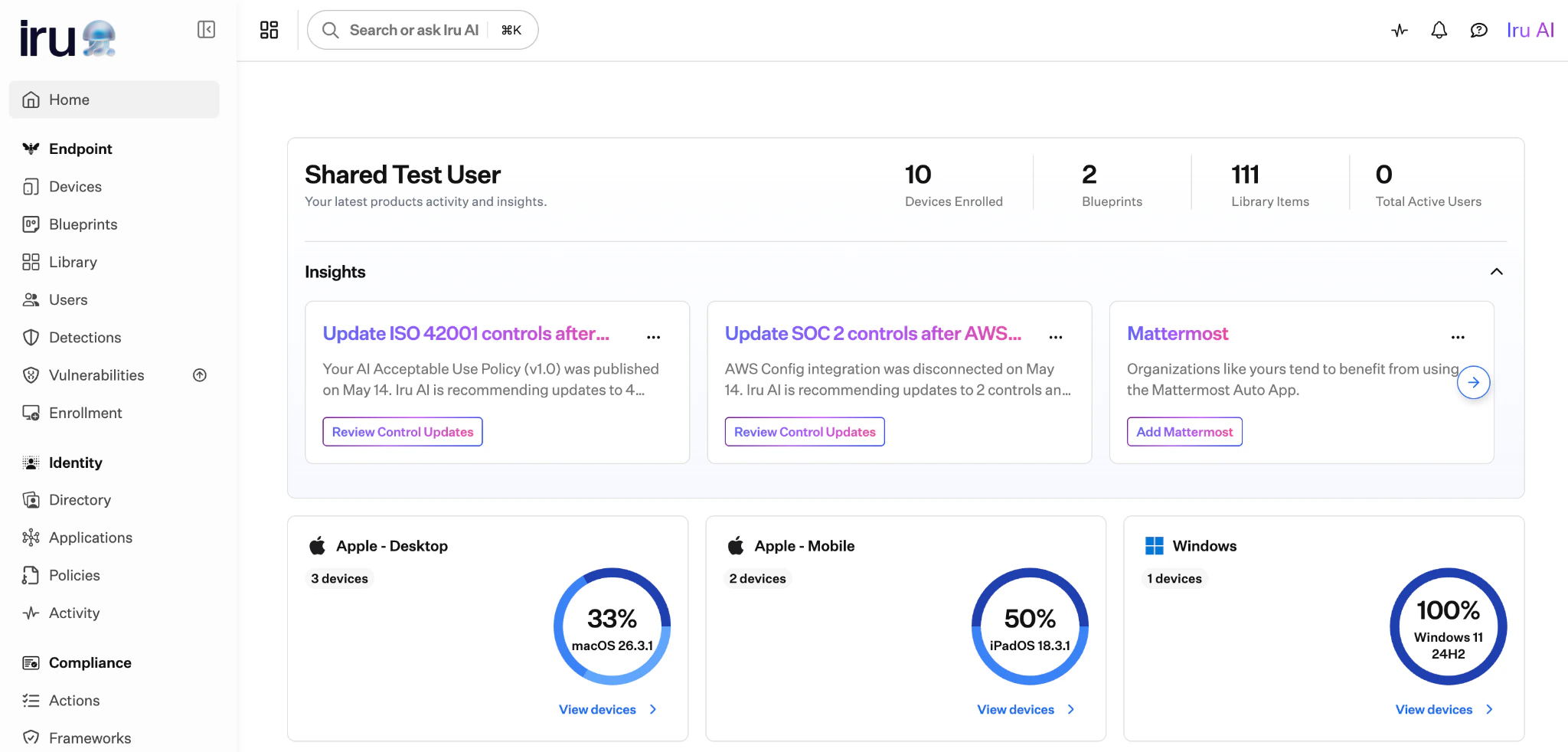
When a recommendation is pending, an **Insights** card appears at the top of **Home** (select **Home** in the left navigation bar). The card summarizes the framework and how many controls Iru AI suggests updating. Select **Review Control Updates** to open the review panel.
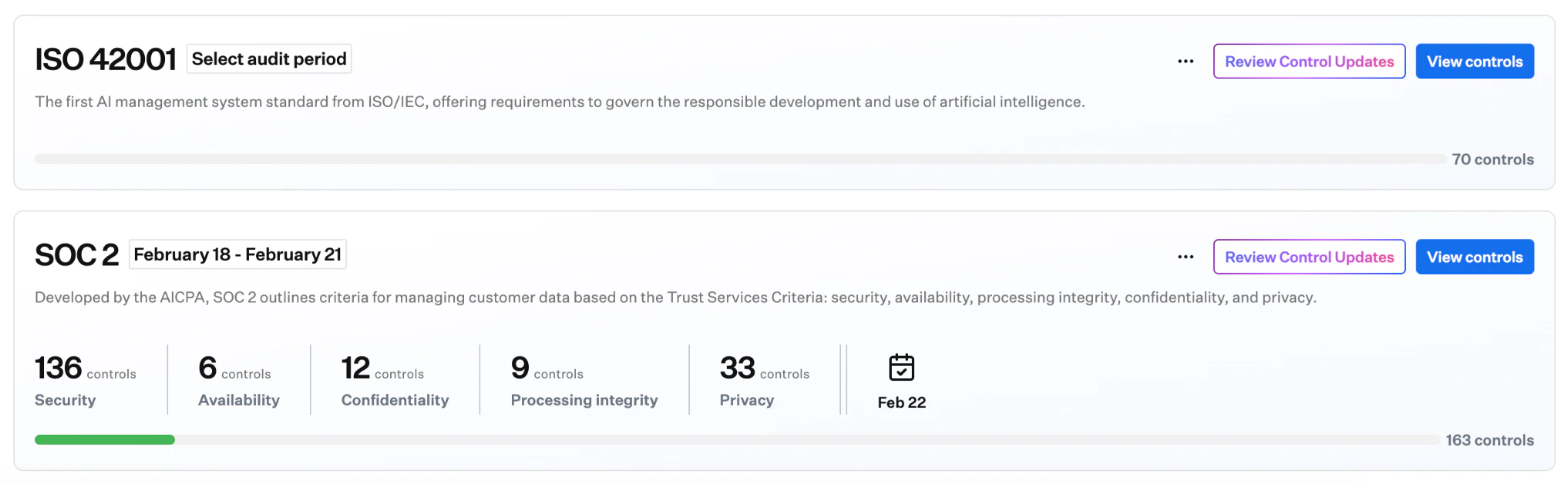
 On the left navigation bar, expand **Compliance** and select **Frameworks**. Frameworks with pending recommendations show an Iru AI indicator on the card. Select **Review Control Updates** on the card to open the review panel.
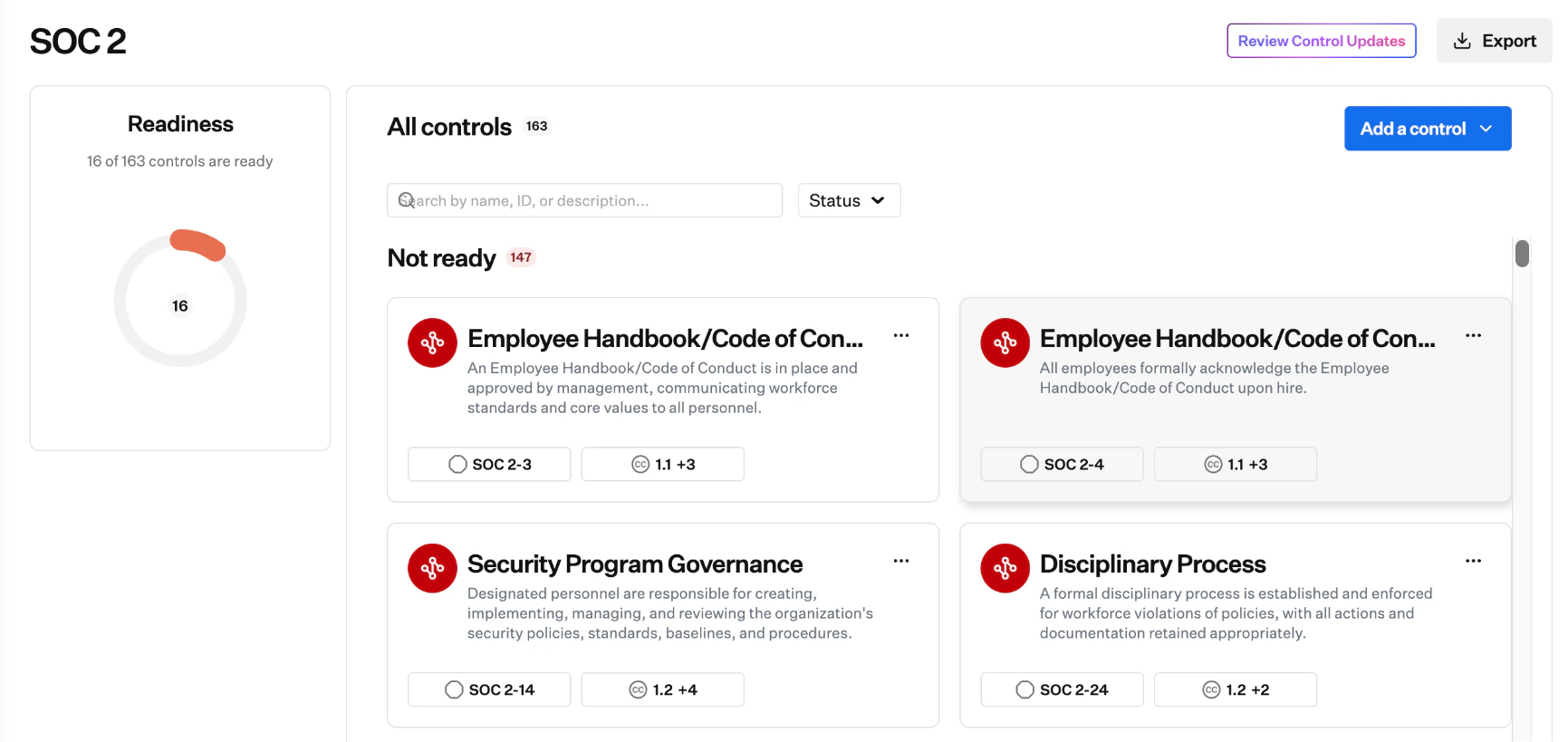
 On a framework’s detail page, use **Review Control Updates** in the page header (next to the framework name and audit details).
 #### Review and Approve Control Updates
From **Home** → **Insights**, **Frameworks**, or a framework detail page, select **Review Control Updates**.
The header summarizes the recommendation. On the right:
* **Reject all**: dismiss every proposed change in this recommendation
* **Approve all (N)**: apply every checked change
#### Review and Approve Control Updates
From **Home** → **Insights**, **Frameworks**, or a framework detail page, select **Review Control Updates**.
The header summarizes the recommendation. On the right:
* **Reject all**: dismiss every proposed change in this recommendation
* **Approve all (N)**: apply every checked change
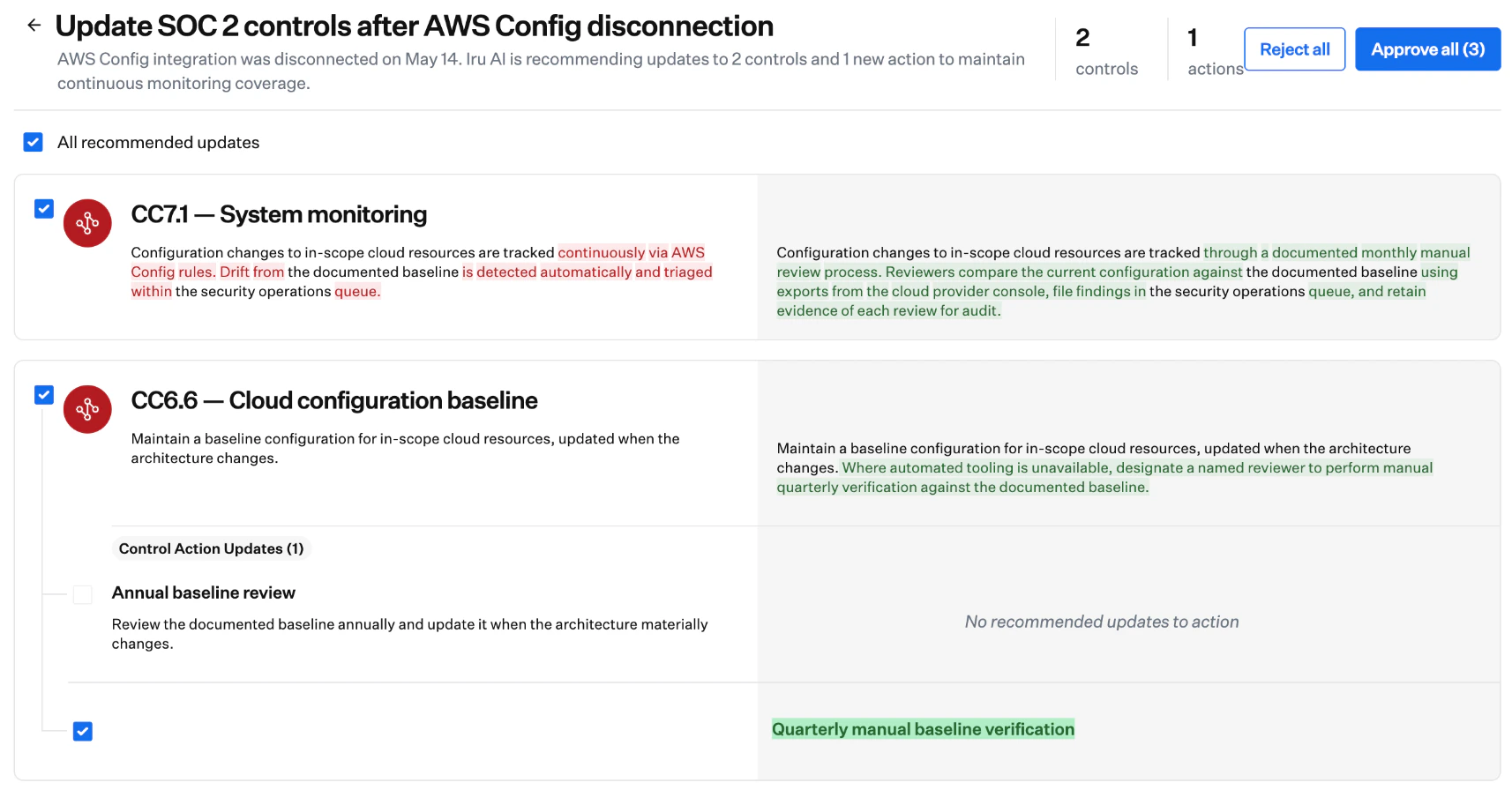 Each control with proposed changes appears as its own section:
* **Current text** (left): existing control or action wording
* **Proposed text** (right): suggested wording, with additions and removals highlighted
**Control Action Updates** listed under a control have their own diffs when action text would change.
Each proposed change has a checkbox. All are checked by default.
* Leave a box checked to include that change when you approve
* Clear a box to keep the existing text for that control or action
* Use **All recommended updates** to select or clear everything at once
* **Approve all (N)**: applies every checked change. The recommendation is removed from **Insights** and the framework.
* **Reject all**: dismisses the full recommendation, including unchecked items. Iru AI may surface a new recommendation later if signals continue.
If you close the panel without approving or rejecting, the recommendation stays on **Insights** and the framework until an **Admin** or **Compliance Admin** acts on it.
## Considerations
Iru AI does not edit controls on its own. You must select **Approve** (or approve individual checked items) for text to change.
Only control and action **text** updates. Framework configuration (including **audit period** and auditor details), evidence attachments, and readiness calculations tied to completed actions are outside this workflow. Today, recommendations react to **Source** and policy artifact changes; more signal types may be added in later releases.
You cannot edit Iru AI’s proposed wording in the review panel in this release. If a suggestion is close but not right, clear that checkbox, approve the rest, then edit the control or action directly on the framework. See [Frameworks Management](/en/compliance/frameworks-management).
Approving or rejecting recommendations requires **Admin** or **Compliance Admin** access in Compliance (see [Compliance Permissions](/en/compliance/compliance-permissions)). Other roles may see that a recommendation exists but cannot approve or reject it.
Approvals and rejections are recorded with the acting user. Open the framework’s history to review past control update decisions.
**Home** → **Insights** cards for control updates follow the same Iru AI access rules as other insights. Disabling Iru AI for the tenant removes the chat interface and general **Insights**; Compliance features that rely on Iru AI may still run. See [Iru AI Overview](/en/iru/iru-ai/iru-ai-overview).
## Troubleshooting
Recommendations run on a daily schedule, so wait up to 24 hours after the change. If nothing appears, confirm the integration or artifact change completed successfully and that your role can view frameworks. If integrations and policies have been stable, there may be no signal for Iru AI to act on yet.
Only **Admin** or **Compliance Admin** can approve or reject **Control Update** recommendations. Confirm your role on the **Access** page. See [Compliance Permissions](/en/compliance/compliance-permissions).
A rejected recommendation does not return on its own. Edit the control or action directly on the framework if you need to restore or adjust text. If drift continues, Iru AI may generate a new recommendation on a later daily run.
The recommendation remains on **Home** → **Insights** and on the framework until you or another **Admin** or **Compliance Admin** approves or rejects it.
Uncheck specific items before you approve, or edit the control or action after approval on the framework detail page. Inline editing inside the review panel is not available in this release.
## Related Articles
Add frameworks, edit controls, and track readiness.
Recommended setup order for frameworks, sources, and actions.
Connect and remove integrations that can trigger control update recommendations.
Policy artifacts and other evidence tied to controls.
Action descriptions that sources and Adaptive Compliance may reference.
How frameworks, sources, actions, and evidence connect over time.
Each control with proposed changes appears as its own section:
* **Current text** (left): existing control or action wording
* **Proposed text** (right): suggested wording, with additions and removals highlighted
**Control Action Updates** listed under a control have their own diffs when action text would change.
Each proposed change has a checkbox. All are checked by default.
* Leave a box checked to include that change when you approve
* Clear a box to keep the existing text for that control or action
* Use **All recommended updates** to select or clear everything at once
* **Approve all (N)**: applies every checked change. The recommendation is removed from **Insights** and the framework.
* **Reject all**: dismisses the full recommendation, including unchecked items. Iru AI may surface a new recommendation later if signals continue.
If you close the panel without approving or rejecting, the recommendation stays on **Insights** and the framework until an **Admin** or **Compliance Admin** acts on it.
## Considerations
Iru AI does not edit controls on its own. You must select **Approve** (or approve individual checked items) for text to change.
Only control and action **text** updates. Framework configuration (including **audit period** and auditor details), evidence attachments, and readiness calculations tied to completed actions are outside this workflow. Today, recommendations react to **Source** and policy artifact changes; more signal types may be added in later releases.
You cannot edit Iru AI’s proposed wording in the review panel in this release. If a suggestion is close but not right, clear that checkbox, approve the rest, then edit the control or action directly on the framework. See [Frameworks Management](/en/compliance/frameworks-management).
Approving or rejecting recommendations requires **Admin** or **Compliance Admin** access in Compliance (see [Compliance Permissions](/en/compliance/compliance-permissions)). Other roles may see that a recommendation exists but cannot approve or reject it.
Approvals and rejections are recorded with the acting user. Open the framework’s history to review past control update decisions.
**Home** → **Insights** cards for control updates follow the same Iru AI access rules as other insights. Disabling Iru AI for the tenant removes the chat interface and general **Insights**; Compliance features that rely on Iru AI may still run. See [Iru AI Overview](/en/iru/iru-ai/iru-ai-overview).
## Troubleshooting
Recommendations run on a daily schedule, so wait up to 24 hours after the change. If nothing appears, confirm the integration or artifact change completed successfully and that your role can view frameworks. If integrations and policies have been stable, there may be no signal for Iru AI to act on yet.
Only **Admin** or **Compliance Admin** can approve or reject **Control Update** recommendations. Confirm your role on the **Access** page. See [Compliance Permissions](/en/compliance/compliance-permissions).
A rejected recommendation does not return on its own. Edit the control or action directly on the framework if you need to restore or adjust text. If drift continues, Iru AI may generate a new recommendation on a later daily run.
The recommendation remains on **Home** → **Insights** and on the framework until you or another **Admin** or **Compliance Admin** approves or rejects it.
Uncheck specific items before you approve, or edit the control or action after approval on the framework detail page. Inline editing inside the review panel is not available in this release.
## Related Articles
Add frameworks, edit controls, and track readiness.
Recommended setup order for frameworks, sources, and actions.
Connect and remove integrations that can trigger control update recommendations.
Policy artifacts and other evidence tied to controls.
Action descriptions that sources and Adaptive Compliance may reference.
How frameworks, sources, actions, and evidence connect over time.